


When you look at the back of your computer, you might notice a classic blue port that seems like a relic from the past. Understanding what is VGA on motherboard hardware is essential for diagnosing display issues or setting up older monitors. Beyond the physical port itself, many modern users encounter a “VGA light” on their motherboard during the startup process.
This indicator is a vital part of the system‘s self-check routine, signaling whether the computer has successfully detected a graphics output. Whether you are dealing with an aging connector or a cryptic LED warning, knowing how these components interact helps you keep your system running.
The Anatomy of the VGA Port

In the context of physical hardware, a VGA port is a 15-pin D-sub connector used for transmitting analog video signals. While digital connections like HDMI and DisplayPort have largely taken over, many motherboards still include this port for backward compatibility. It serves as an interface for the integrated graphics processor found within your CPU.
If your processor supports integrated graphics, the motherboard uses this port to send a signal directly to your monitor. This is a convenient solution for office workstations or home PCs that do not require a dedicated graphics card. However, because the signal is analog, it is susceptible to interference and quality loss over long cable runs.
Physical Characteristics of the Connector
- Standard 15-pin layout arranged in three rows.
- Blue color-coding, which became the industry standard for analog video.
- Screw-in mounting holes for a secure, vibration-resistant connection.
- Limited bandwidth compared to modern digital standards like HDMI or DisplayPort.
The VGA Debug Light Explained
If you have built a PC recently, you might have noticed a small LED labeled “VGA” on your motherboard. This is not a port, but a diagnostic tool.
During the Power-On Self-Test (POST), the motherboard checks the essential components of your system. If the system fails to detect a valid graphics device, this light stays illuminated.
Seeing this light turn on—or stay on—during the boot process indicates that the motherboard cannot initialize the graphics hardware. This could mean a missing GPU, a loose connection, or a failure in the communication between the motherboard and the graphics card. It is a specific warning designed to help you pinpoint why your screen remains black even when the computer seems to be powered on.
Comparing Video Output Standards
Choosing the right connection for your monitor involves understanding the capabilities of each interface. While VGA was once the king of display connectivity, it lacks the high-resolution and high-refresh-rate capabilities of modern digital alternatives.
| Connection Type | Signal Type | Max Resolution | Best For |
|---|---|---|---|
| VGA | Analog | 1920×1080 | Legacy monitors |
| HDMI | Digital | 4K / 8K | TVs and consoles |
| DisplayPort | Digital | 4K+ / High Hz | Gaming PCs |
| DVI | Digital/Analog | 2560×1600 | Older workstations |
Troubleshooting the VGA Error Light
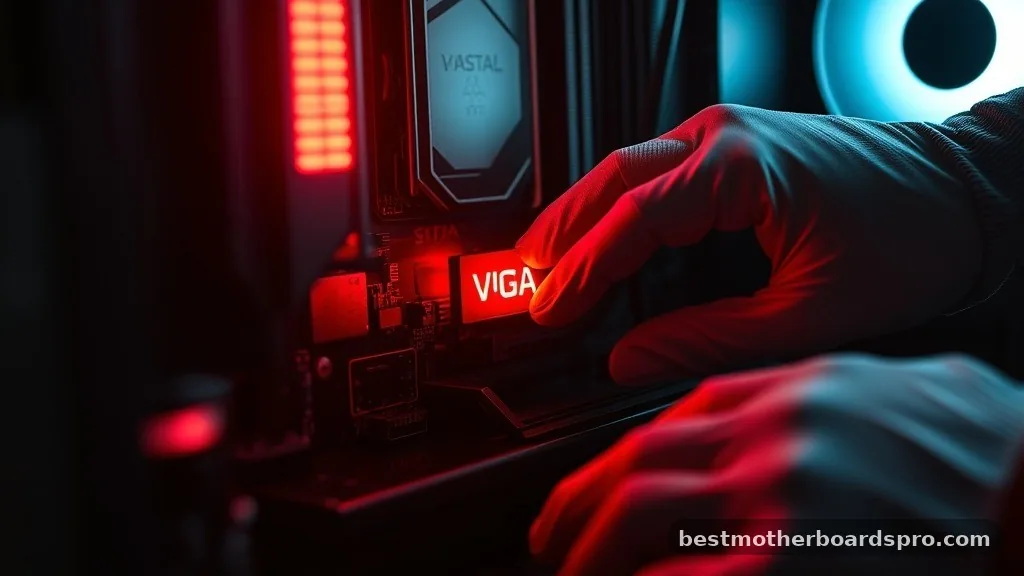
When you encounter a persistent VGA warning light, the first step is to stay calm and follow a systematic approach. Often, the issue is as simple as a poorly seated cable or a card that has shifted slightly during transport.
Begin by checking the power cables connected to your dedicated graphics card. If you are using a GPU, ensure that all the pins are pushed in firmly and that the power supply is delivering enough voltage. If the light persists, try reseating the graphics card by removing it from the PCIe slot and firmly clicking it back into place.
Steps to Resolve Graphics Detection Issues
- Power down the system and unplug the power cable.
- Check that your monitor is plugged into the GPU, not the motherboard, if a dedicated card is installed.
- Reseat the graphics card in the PCIe slot to ensure a clean electrical connection.
- Inspect the monitor cable for damage or bent pins.
- Clear the CMOS if you recently changed BIOS settings that might affect the PCIe lane configuration.
Addressing Common Misconceptions
A frequent point of confusion is whether the VGA port on the motherboard can work simultaneously with a dedicated graphics card. Generally, when you plug a dedicated card into the system, the motherboard automatically disables the onboard video output. This is why you should always plug your monitor cable into the dedicated GPU port rather than the motherboard port if you have a separate card.
Another common question involves whether the VGA light indicates a “broken” component. While it often points to a hardware failure, it can also trigger due to a simple firmware conflict. Updating your motherboard’s BIOS can sometimes resolve compatibility issues with newer graphics cards that were not accounted for when the board was manufactured.
Why the VGA Light Stays On Even When the System Works
Sometimes, you might see the VGA light flicker or stay on briefly during the boot sequence before turning off. This is perfectly normal behavior.
The motherboard is simply confirming that it has successfully initiated the graphics driver. If the light turns off after the computer finishes booting and you have a clear image on your screen, there is no cause for concern.
However, if the light stays on indefinitely and you have no display, that is a clear indicator of a problem. In such cases, the system is essentially saying it cannot “see” the graphics hardware needed to proceed with the boot process. This is the most critical time to check your cables and internal connections.
FAQ
Is VGA the same as a GPU?
No, they are distinct entities. VGA refers to the Video Graphics Array, an analog connection standard.
A GPU, or Graphics Processing Unit, is the actual hardware chip responsible for rendering images. The VGA port is simply a physical interface used to send the signal from that GPU to your monitor.
Can I use VGA for modern gaming?
While you can connect a modern PC to a monitor via VGA, it is not recommended for gaming. VGA is an analog signal, which often results in lower image clarity, ghosting, and a lack of support for high refresh rates or high-definition resolutions that modern games require for optimal performance.
What does a white VGA light mean on my motherboard?
A white VGA light is a diagnostic code indicating that the motherboard has failed to detect a monitor or a graphics card during the boot process. It usually means the system cannot complete the POST because it doesn’t have a video output to display the startup sequence.
Why is my monitor black even though the VGA light is off?
If the VGA light is off but the screen remains black, the issue may lie with the monitor itself, the video cable, or the input source settings on the display. Check that the monitor is powered on and set to the correct input channel, such as HDMI or DisplayPort.
Closing Thoughts on Graphics Connectivity
Managing display hardware and troubleshooting motherboard indicators like the VGA light is a fundamental skill for any computer user. While the physical port is becoming less common in high-end builds, its presence on motherboards remains a useful legacy feature. Whether you are connecting an older display or interpreting a diagnostic light, remember that most issues stem from simple connection errors rather than total hardware failure.
By systematically checking your GPU, cables, and power supply, you can resolve most display problems quickly. Understanding what is VGA on motherboard systems allows you to maintain your PC with confidence, ensuring you always have a clear, reliable signal for your digital workspace.



