


If you have ever found yourself staring at a handful of tiny, confusing cables while building a PC, you have likely encountered the JFP1 header. Understanding what is JFP1 on motherboard circuitry is essential for anyone attempting a custom build, as this specific block of pins acts as the nerve center for your computer’s chassis controls.
Without properly seating these cables, your system simply will not wake up when you press the power button. This guide breaks down exactly how to manage these connections, ensuring your power, reset, and status indicators function just as they should.
Decoding the JFP1 Header
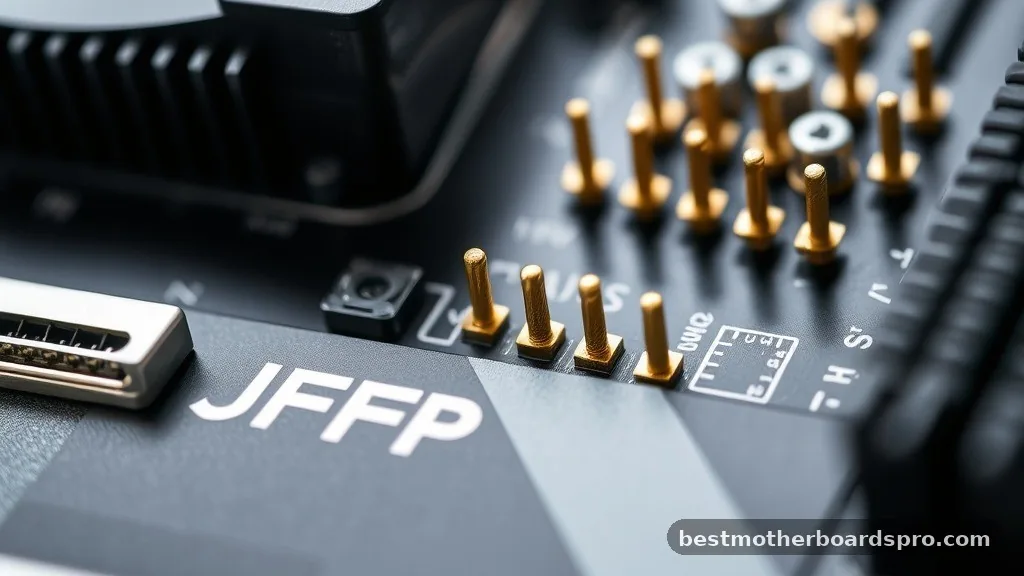
The term JFP1 stands for “Jump Front Panel 1.” It is a proprietary label most commonly used by MSI, though the underlying function is identical to what other manufacturers call the “F_Panel” or “System Panel Header.” Located near the bottom edge of your motherboard, this cluster of pins serves as the interface between your computer case and the mainboard.
When you look at your case, you will find several thin wires bundled together. These cables carry signals from the exterior buttons and lights into the motherboard. By connecting them to the JFP1 header, you establish the electrical path needed to trigger the power supply, reset the system, and monitor drive activity.
Mapping the Pin Layout
Because there is no universal industry standard for the physical layout of these pins, the JFP1 header can vary slightly between board models. Most headers consist of a 9-pin or 10-pin block arranged in two rows. You will usually find a small diagram printed directly onto the motherboard surface, but if the text is too small to read, the manual is your best friend.
Common Pin Functions
The pins are grouped to handle specific tasks. Each pair corresponds to a specific button or LED on your case.
- Power Switch (PWR_SW): This pair tells the motherboard to start the boot process. It is a momentary switch, meaning it only sends a signal when pressed.
- Reset Switch (RESET_SW): Similar to the power switch, this triggers a hard reboot of the system.
- HDD LED: This light flickers when your storage drive is actively reading or writing data.
- Power LED: This light indicates that the system is receiving power and is currently turned on.
Understanding Polarity and Connection
One of the most frequent mistakes builders make involves the orientation of the cables. While the power and reset switches are non-polarized—meaning it does not matter which way you plug them in—the LED cables are strictly polarized. This means they have a positive (+) and a negative (-) side.
If you plug an LED cable in backward, the light simply will not illuminate. You will not damage your hardware by doing this, but you will have to unplug the connector and flip it 180 degrees to get the light working. The power and reset buttons, however, will function regardless of their orientation.
Comparison of Connector Types
| Connector Type | Function | Polarity Sensitive? |
|---|---|---|
| Power Switch | Starts the PC | No |
| Reset Switch | Restarts the PC | No |
| HDD LED | Shows storage activity | Yes |
| Power LED | Shows system status | Yes |
Addressing Common Installation Challenges
Many builders struggle when their case cables are separated into individual single-pin connectors, while the JFP1 header is a consolidated block. This is designed to ensure compatibility across various case manufacturers, but it can be fiddly to install. If you have large hands, using a pair of tweezers or needle-nose pliers can make the process significantly easier.
Another common issue arises when the labels on the case cables do not perfectly match the abbreviations on the motherboard. For example, “PLED” on a cable is the same as “PWR_LED” on your board. If you ever feel lost, consult the PDF version of your motherboard manual, which often includes a high-resolution diagram of the specific pinout for your exact hardware revision.
Troubleshooting Non-Responsive Systems
If you have finished your build and pressing the power button does nothing, the JFP1 connection is the first place you should look. It is very common for these tiny plugs to be seated on the wrong pins or to have slipped off during cable management.
Try unplugging the PWR_SW cable and carefully re-seating it. If you suspect the switch itself might be faulty, you can test the motherboard by gently touching the two power pins together with the tip of a screwdriver.
This creates the same electrical bridge as the button. If the fans spin and the system starts, you know the issue lies with the case button or the cable, not the motherboard itself.
Frequently Asked Questions
Is JFP1 the same as F_Panel?
Yes, JFP1 and F_Panel are functionally identical. JFP1 is primarily used by MSI to denote the front panel header, while other motherboard manufacturers use labels like F_Panel, System Panel, or Front Panel. They all serve the same purpose of connecting your case buttons and LEDs to the board.
Do I need to connect all the pins on JFP1?
You only need to connect the Power Switch to make the computer turn on. The Reset Switch, Power LED, and HDD LED are optional. If your case does not have a reset button or you prefer not to have blinking lights, you can safely leave those pins empty.
What happens if I plug the LED cables in backward?
If you plug an LED connector in with the wrong polarity, the light simply will not turn on. You will not damage your motherboard or the LED itself. To fix this, just unplug the connector, rotate it 180 degrees, and plug it back into the correct pins.
Can I use an extension cable for the front panel?
Yes, you can use front panel extension cables if your case wires are too short to reach the JFP1 header. These are inexpensive and useful for builds where you want to route cables behind the motherboard tray for a cleaner aesthetic, keeping the main chamber free of clutter.
Final Thoughts on Panel Connections
Mastering the layout of your JFP1 header is a rite of passage for any PC enthusiast. While these tiny, delicate pins can look intimidating, they are quite forgiving if you take your time and follow the documentation provided by your motherboard manufacturer. Always double-check your manual, ensure your connections are snug, and remember that the power switch is the only strictly necessary component for your system to function.
Once you have successfully managed these connections, you have cleared one of the final hurdles in bringing your custom machine to life. If you encounter any lingering issues, don’t hesitate to consult the specific diagram for your board model, as slight variations are common in the ever-evolving world of PC hardware.



