

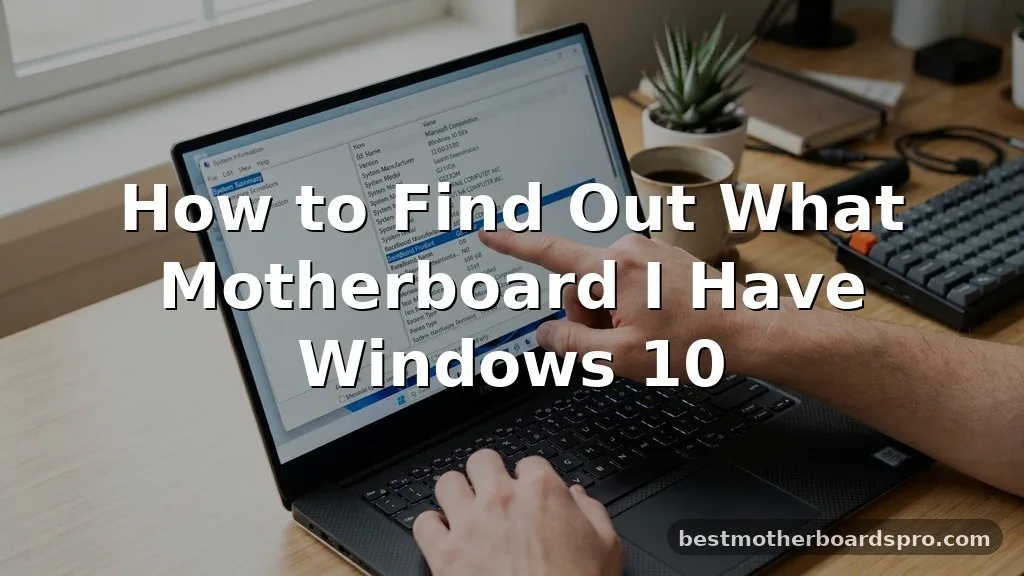
Identifying your PC’s hardware is a task every user eventually encounters, especially when considering upgrades or troubleshooting driver issues. If you are currently trying to find out what motherboard I have Windows 10, you are likely looking for the specific model number to ensure compatibility with new components like RAM or a GPU.
Fortunately, your operating system provides several built-in tools that eliminate the need to open your computer case or install third-party software. Whether you prefer a quick command-line check or a visual interface, these methods will help you pinpoint your exact hardware configuration in just a few clicks.
Using System Information for Quick Identification
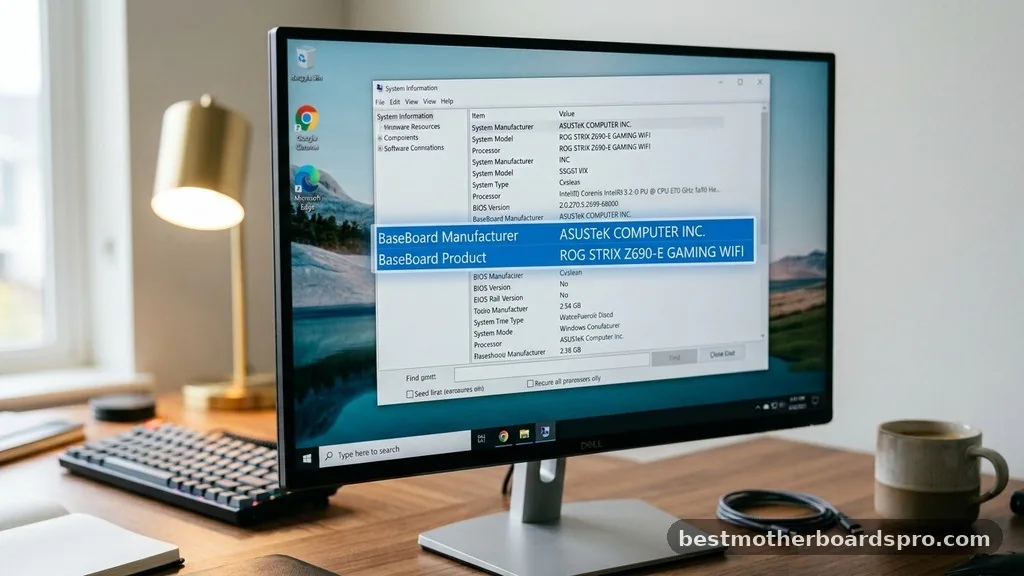
The most straightforward way to see your hardware details is through the System Information utility. This tool is built into every copy of Windows and provides a comprehensive overview of your machine’s components without requiring any advanced technical knowledge.
To launch this tool, press the Windows key on your keyboard, type “msinfo32,” and hit Enter. Once the window opens, ensure you have “System Summary” selected in the left-hand navigation pane. In the right-hand pane, scroll down until you see the labels “BaseBoard Manufacturer,” “BaseBoard Product,” and “BaseBoard Version.”
These fields will display the brand and model of your main circuit board. If these fields show “Base Board” instead of a specific model, it usually implies that your computer is a pre-built system from a manufacturer like Dell or HP, which sometimes uses proprietary naming conventions.
Checking Hardware Details via Command Prompt
For those who prefer a faster, text-based approach, the Command Prompt is an incredibly efficient tool. It bypasses the graphical interface entirely, pulling data directly from the Windows Management Instrumentation (WMI) database.
Open the Command Prompt by pressing the Windows key, typing “cmd,” and pressing Enter. Once the black window appears, copy and paste the following command and press Enter:
wmic baseboard get product,Manufacturer,version,serialnumber
The system will return a table showing the manufacturer and the specific model of your board. This method is particularly useful if you are working on a remote machine or if you want to quickly copy the model name to paste into a search engine. If you need to find the serial number as well, this command provides that data alongside the model name, which is helpful for warranty claims or checking specific revision numbers.
Leveraging PowerShell for Advanced Users
PowerShell offers a more powerful alternative to the standard Command Prompt. It is built on the .NET framework and allows for more complex queries if you need to extract specific hardware strings.
To use this method, right-click the Start button and select “Windows PowerShell.” Once the terminal window opens, type the following command and hit Enter:
Get-CimInstance Win32_BaseBoard | Format-List Product, Manufacturer, SerialNumber, Version
This will output a clean, formatted list of your board’s details. Many users find this cleaner than the standard Command Prompt output because it labels each piece of information clearly. If you are building a script to audit multiple computers, this command is the standard way to programmatically retrieve motherboard information across a network or a fleet of machines.
Understanding Motherboard Specifications

When you finally look up your board, you might see a long string of numbers and letters. Manufacturers often use these codes to designate specific variations of a board, such as different revisions or regional releases.
- Manufacturer: This identifies the company that designed the board, such as ASUS, MSI, Gigabyte, or ASRock.
- Product: This is the specific model name, like “B550-A PRO” or “Z690 HERO.”
- Version: This refers to the hardware revision, which can be critical for BIOS updates.
- Serial Number: This unique identifier is used for tracking and support purposes.
It is important to note that the “BaseBoard” is simply the technical term Windows uses for the motherboard. When you see “BaseBoard” in system reports, you are looking at the primary circuit board that connects your CPU, RAM, and storage devices.
Comparing Methods for Hardware Identification
Choosing the right method depends on your comfort level with Windows tools and how much detail you require. The following table compares the different approaches to help you decide which one fits your needs best.
| Method | Ease of Use | Level of Detail | Best For |
|---|---|---|---|
| System Information | High | Medium | General users |
| Command Prompt | Medium | High | Quick diagnostics |
| PowerShell | Medium | High | Technical auditing |
| BIOS/UEFI | Low | Maximum | Troubleshooting |
Each of these methods pulls from the same underlying database, so you should receive the same information regardless of which tool you choose. However, if you are experiencing severe system instability, checking the information inside the BIOS/UEFI might be necessary, as it does not rely on the operating system being fully functional.
Accessing Hardware Info via BIOS or UEFI
If your computer fails to boot into Windows, or if you want to verify your hardware without the interference of drivers, the BIOS or UEFI is your best option. This is the low-level software that initializes your hardware during the startup process.
To enter this environment, restart your computer and repeatedly press the specific key assigned by your manufacturer, which is typically Del, F2, F10, or F12. Once you are inside the interface, look for a tab labeled “System Information,” “Main,” or “About.”
The board model and manufacturer are almost always listed on the primary landing page. This is the most reliable way to confirm what hardware you have, as it bypasses any potential errors in Windows reporting.
Troubleshooting Common Identification Issues
Sometimes, Windows might return a generic name or simply say “To be filled by OEM.” This usually happens with pre-built computers from companies like Dell, Lenovo, or HP. These companies often produce custom boards that do not follow standard retail naming conventions.
If you encounter this, your best bet is to use the serial number or the service tag found on the sticker on the back or bottom of your computer case. You can input this tag into the manufacturer’s support website to view the exact specifications of your machine. Another common issue is outdated drivers.
If you are trying to find your model to update your BIOS, ensure you are downloading the file directly from the official manufacturer website. Never use third-party driver update tools, as they often provide incorrect files that can render your board unusable.
FAQ
Why does my computer say “To be filled by OEM” instead of a model name?
This message typically appears on pre-built computers from major brands like Dell or HP. The manufacturer uses proprietary boards designed specifically for their chassis, meaning they don’t have a standard retail model name. You should use your computer’s service tag or serial number on the manufacturer’s support site instead.
Can I use any CPU with any motherboard?
No, CPUs and boards must share the same socket type and chipset compatibility. Even if a CPU physically fits into a socket, the board’s firmware must support that specific processor architecture. Always check the manufacturer’s CPU support list before purchasing a new processor to ensure it is compatible.
How do I update my motherboard BIOS?
Updating your BIOS involves downloading the correct firmware file from the manufacturer’s official website, placing it on a formatted USB drive, and using the built-in update utility within your BIOS/UEFI menu. Be extremely careful, as an interrupted update can permanently damage your system’s ability to boot.
Does the motherboard model change if I update Windows?
Updating your operating system does not change your hardware components. While a new version of Windows might change how the system reports your hardware information or which drivers it uses, the physical board remains the same. The model name and serial number are hardcoded into the board’s firmware.
Conclusion
Learning how to find out what motherboard I have Windows 10 is a foundational skill that simplifies future upgrades and maintenance. Whether you choose the user-friendly System Information tool or the efficiency of the Command Prompt, you now have the knowledge to identify your hardware quickly. Remember that the “BaseBoard” is simply the technical name for your motherboard, and manufacturers use these specific model names to determine compatibility for everything from RAM speeds to CPU upgrades.
By using these built-in methods, you avoid the risks associated with third-party software and ensure you are getting accurate information directly from your system. If you have any trouble or see unexpected results, checking your serial number on the manufacturer’s website is the final, reliable step.



