

If you have been poking around your PC build and noticed a header labeled CPU_OPT, you are certainly not alone. It is a common point of confusion for builders who are trying to figure out where to plug in their extra cooling components. Understanding exactly what CPU OPT on motherboard layouts does is the key to managing your thermal performance without triggering BIOS error messages.
Most modern boards include this specific connector to provide more flexibility for advanced cooling setups, especially when you are using liquid coolers or multi-fan air cooling towers. Getting this right ensures your system runs cool, quiet, and stable under heavy loads.
Understanding the Purpose of CPU OPT
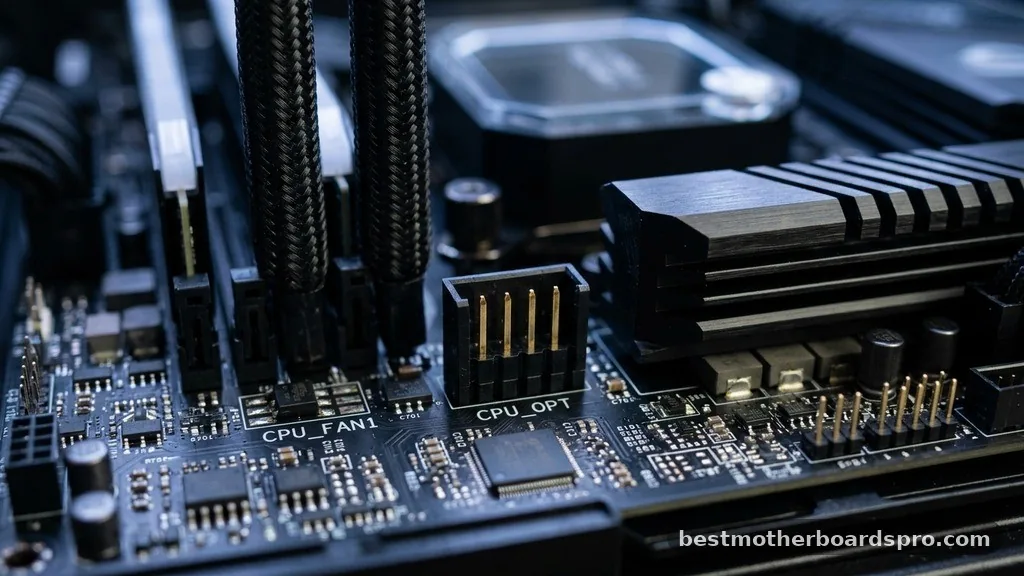
The CPU_OPT header is essentially an auxiliary or “optional” connection designed to work in tandem with your primary CPU fan header. While your main CPU fan header is dedicated to the primary cooling unit, the CPU_OPT header provides an identical control signal. This means that whatever speed curve or temperature target you set in your BIOS for the main processor fan will also be applied to anything plugged into the OPT port.
Manufacturers include this extra header because modern cooling solutions often require more than one connection. If you are using a beefy air cooler with two fans, you can plug both into the CPU and CPU_OPT headers to ensure they spin in perfect synchronization. If you were to plug that second fan into a generic case fan header, it might not react to the heat spikes of your processor quickly enough, leading to uneven cooling performance.
Distinguishing Between CPU Fan and CPU OPT
While they share the same control logic, there is a subtle hierarchy between these two connections. The primary CPU fan header is the one the motherboard monitors to ensure your system is safe to boot. If that header detects no signal, many motherboards will throw a “CPU Fan Error” and halt the startup process to prevent your processor from overheating.
The CPU_OPT header does not usually trigger this safety shutdown. This makes it an ideal spot for secondary hardware that doesn’t need to pass the “is the cooler working” test at startup. However, because it mirrors the CPU fan’s behavior, it is not a general-purpose header for your case airflow.
| Feature | CPU Fan Header | CPU OPT Header |
|---|---|---|
| Primary Function | Main cooler management | Secondary/Auxiliary cooling |
| BIOS Monitoring | Required for boot | Optional/Not monitored |
| Speed Control | CPU Temperature | Mirrors CPU Fan |
| Best Use Case | Main heatsink fan | Second fan or AIO pump |
Connecting AIO Pumps and Multiple Fans
One of the most frequent questions from builders involves whether the CPU_OPT header is the right place for an AIO pump. The answer often depends on your specific motherboard and the power requirements of your pump. Many enthusiasts use this header for their liquid cooling pump because it allows the pump to scale its speed based on the CPU’s current temperature profile.
However, you should always check your motherboard manual for the maximum amperage rating of the header. A standard fan header usually provides 1 Amp of power.
If your pump draws more than that, it could potentially damage the motherboard circuitry. If you are using a standard PWM fan, you have nothing to worry about.
- Syncing dual-fan air coolers for uniform airflow.
- Powering AIO liquid cooling pumps that require PWM control.
- Adding an intake fan that needs to speed up as the processor gets hotter.
- Managing high-performance cooling setups without needing a separate fan controller.
Configuring Fan Curves in BIOS
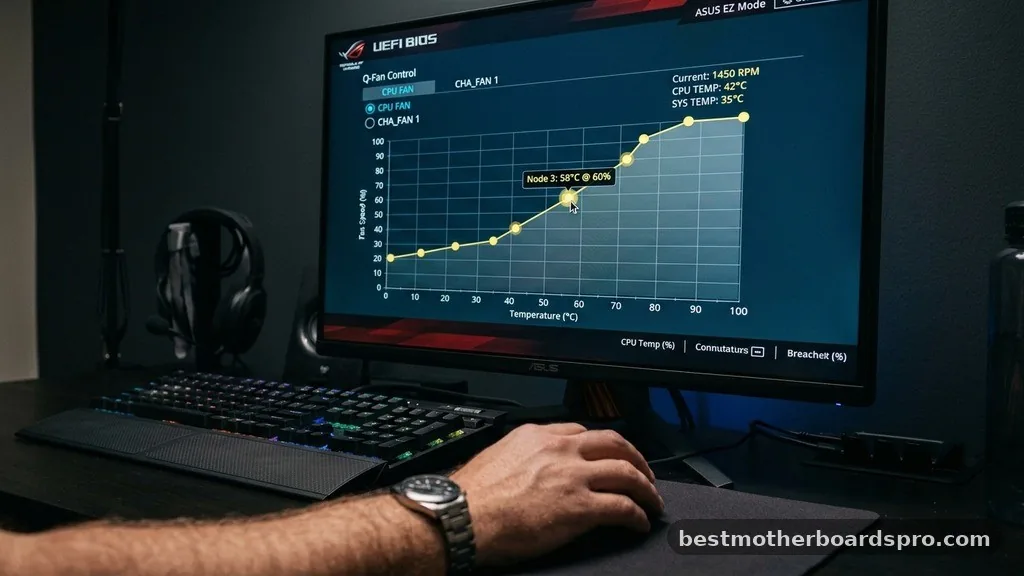
Since the CPU_OPT header follows the instructions of the primary CPU header, you don’t need to set a unique curve for it. When you enter your BIOS, you will typically see settings for “CPU Fan” and “CPU OPT.” If you leave the OPT settings on “Auto” or “Sync,” the board handles everything for you.
If you find that your secondary fan is spinning too loudly, you can adjust the curve in the BIOS. Because the OPT header reads the same temperature sensors as the main header, any changes you make to the primary fan’s behavior will trickle down to the OPT device. This is incredibly helpful for fine-tuning noise levels in a silent build.
Troubleshooting Common Header Issues
Sometimes, you might find that the fan plugged into the CPU_OPT header isn’t spinning or is acting erratically. This is rarely a sign of a broken component and usually points to a configuration oversight.
First, verify that the fan is a PWM (4-pin) model. While 3-pin fans can work, they lack the fine-grained control that these headers are designed to provide.
If you have a 3-pin fan, the motherboard might default it to full speed or struggle to regulate it properly. Second, check your BIOS settings to ensure the header is set to “PWM Mode” rather than “DC Mode,” especially if you are using a modern, high-quality cooling fan.
Addressing Topical Gaps in Fan Management
Many users worry that using the CPU_OPT header will “steal” power from the main CPU header, potentially causing the processor to run hot. This is a misconception based on how older, non-intelligent motherboards distributed power.
On any modern motherboard, these headers are electrically isolated. The CPU_OPT header draws its power from the main 24-pin or auxiliary power connectors, not through the traces of the primary CPU fan header.
Another common concern is whether you can use a fan splitter on the CPU_OPT header. While you technically can, it is generally discouraged.
Adding too many fans to a single header increases the electrical load, which can lead to voltage drops or header failure. If you need to run more than two fans based on the CPU temperature, it is much safer to use a powered fan hub that connects to the motherboard via a single header but draws its main power directly from your power supply unit.
Frequently Asked Questions
Can I plug a standard case fan into the CPU OPT header?
Yes, you can plug a standard case fan into the CPU_OPT header without any issues. However, keep in mind that the fan will change its speed based on your CPU temperature. This means your case fan will spin up and down constantly, which might create distracting noise fluctuations.
Is it safe to leave the CPU OPT header empty?
It is perfectly safe to leave the CPU_OPT header empty. It is an auxiliary connection designed to provide extra flexibility for specific cooling setups, not a required component for the system to function. You will not receive any errors or warnings if nothing is plugged into it.
Should I use CPU OPT or a dedicated pump header for my AIO?
If your motherboard has a dedicated “PUMP” header, that is generally the preferred choice for liquid cooling. Pump headers are often configured to run at a constant, high speed to ensure consistent flow. If your board lacks a pump header, the CPU_OPT header is a suitable alternative.
Why does my fan speed fluctuate so much on the CPU OPT header?
Fluctuations occur because the header mirrors the CPU fan’s speed, which reacts to rapid temperature spikes from your processor. If your CPU temperature jumps quickly during light tasks, your fans will react instantly. You can smooth this out by adjusting the step-up or step-down time in your BIOS.
Final Thoughts on Thermal Optimization
Mastering the use of the CPU_OPT header is a small but significant step toward building a more efficient PC. By understanding that this connection is a mirror of your primary cooling logic, you can easily add a second fan to your heatsink or manage your liquid cooler pump without needing extra hardware. It is all about keeping that processor temperature stable while maintaining a balance between acoustic comfort and raw performance.
As you finalize your build, take a moment to double-check your BIOS settings to ensure your fans are responding exactly how you want them to. A well-configured fan profile not only extends the life of your components but also makes your computing experience much more pleasant. If you have any remaining questions about your specific motherboard’s layout, don’t hesitate to check the manual or reach out to the community for advice on your next upgrade.



