

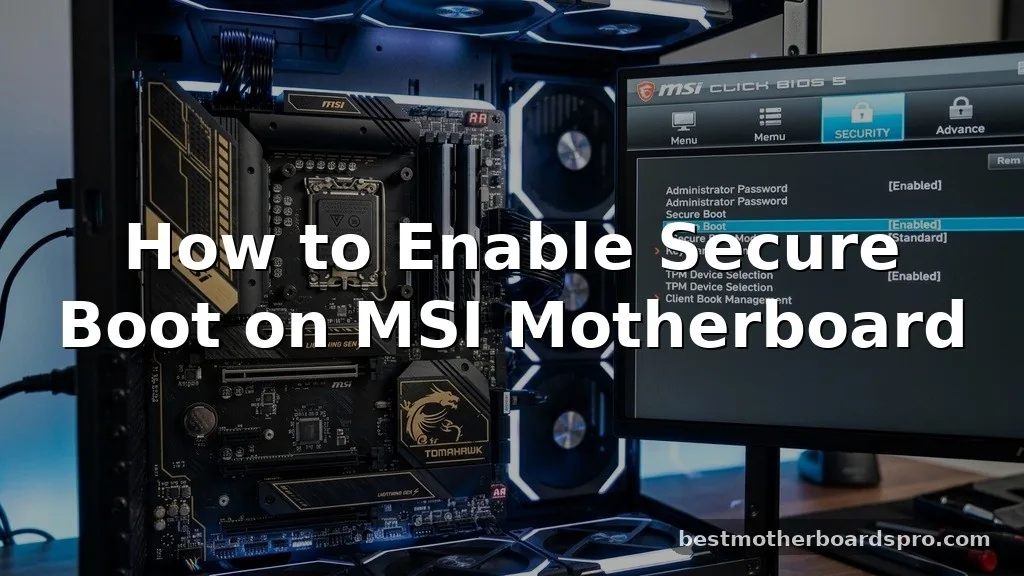
If you are looking to upgrade your PC to Windows 11 or simply want to tighten your system‘s security, knowing the steps for enabling secure boot on MSI motherboard hardware is essential. Many modern operating systems require this security feature to verify the integrity of your bootloader and protect your system from malicious low-level attacks.
While the process might seem intimidating if you haven’t spent much time in the BIOS, it is actually quite straightforward once you know where to look. By adjusting a few specific settings, you can ensure your machine meets the latest requirements and runs as securely as intended.
Understanding the Role of Secure Boot

Secure boot serves as a foundational security standard designed to ensure that a computer boots using only software that is trusted by the Original Equipment Manufacturer (OEM). When your system powers on, the firmware checks the signature of each piece of boot software, including UEFI firmware drivers, EFI applications, and the operating system itself. If the signatures are valid, the system boots; otherwise, it stops the process to prevent unauthorized code from executing.
This feature is particularly important for modern computing environments where rootkits and bootkits pose a significant threat. By verifying the authenticity of the boot chain, you are effectively closing a door that attackers often try to use to gain persistence on a machine. On MSI hardware, this is managed within the Click BIOS interface, which provides a graphical environment to manage these security parameters.
Entering the MSI BIOS Interface
Before you can modify any security settings, you must first access your motherboard’s firmware configuration. Most MSI boards use the Delete key to access this menu. Follow these steps to get into the system:
- Power down your computer completely.
- Press the power button to start the system.
- Immediately and repeatedly tap the Delete key on your keyboard.
- Continue tapping until the graphical BIOS interface appears on your screen.
If you find yourself booting directly into Windows, you may need to time your key presses more precisely or use the Windows Advanced Startup options. To do this, hold the Shift key while clicking “Restart” in the Windows power menu. From there, navigate to Troubleshoot, then Advanced Options, and select UEFI Firmware Settings.
Switching to Advanced Mode
MSI motherboards often feature two distinct interfaces: the EZ Mode and the Advanced Mode. The simplified view is great for quick checks, but it often hides the granular settings required for security configurations. To ensure you have access to everything you need, you must enter the Advanced Mode.
Look for a button labeled “Advanced” near the top of the screen or simply press the F7 key on your keyboard. Once you toggle this mode, you will see a much more detailed set of menus, typically arranged in a column on the left side of the screen. This is where you will find the security and boot-related parameters required to enable secure boot on your system.
Locating and Enabling Secure Boot Settings
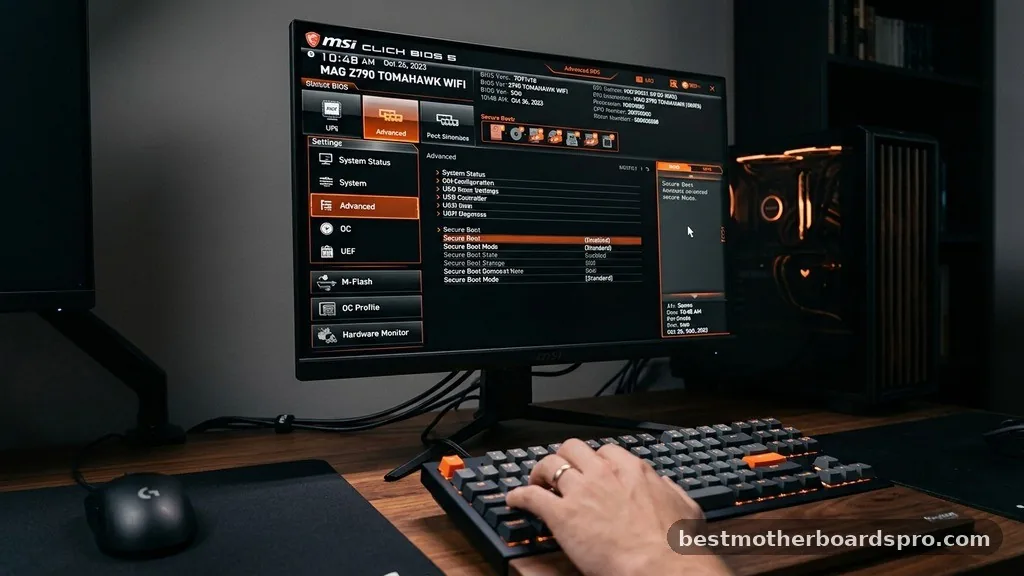
Once you are in the Advanced Mode, you need to find the specific submenu that houses the security features. This is usually located under the “Settings” tab. Follow these steps to locate the necessary toggle:
Navigating the Settings Menu
- Navigate to the Settings tab in the left-hand menu.
- Select the Advanced option, then look for Windows OS Configuration.
- Within this menu, find the setting labeled BIOS UEFI/CSM Mode.
- Ensure this is set to UEFI, as Secure Boot cannot function in legacy CSM mode.
After confirming your system is in UEFI mode, look for the Secure Boot entry. If the option appears greyed out, it is often because your system is currently in “Setup Mode” or has an existing configuration that prevents modification. You may need to select “Secure Boot Mode” and switch it to “Standard” to allow the system to recognize the default keys.
Addressing Common Configuration Issues
Many users encounter hurdles when attempting to activate these features. The most common issue is the “greyed out” option, which usually stems from a conflict between the current boot mode and the security requirements.
| Issue | Cause | Resolution |
|---|---|---|
| Option Greyed Out | System in CSM Mode | Change BIOS mode to UEFI |
| Boot Failure | OS installed on MBR disk | Convert drive to GPT |
| TPM Missing | fTPM not active | Enable AMD/Intel fTPM in settings |
If you are unable to enable the feature, check if your storage drive is partitioned using the MBR scheme. Secure Boot requires a GPT partition style. You can verify this in Windows Disk Management, and if necessary, use the MBR2GPT tool provided by Microsoft to convert your drive without data loss.
Integrating TPM with Secure Boot
While enabling secure boot on MSI motherboard settings is a vital step, it is often paired with the requirement for a Trusted Platform Module (TPM). Windows 11 specifically looks for TPM 2.0 to ensure your hardware is capable of advanced encryption and identity protection.
In your MSI BIOS, look for a section titled Security or Advanced CPU Configuration. You will likely find an option called AMD fTPM or Intel PTT.
Enabling this provides the software-based TPM 2.0 requirement that modern operating systems demand. Once both Secure Boot and the TPM are active, your system should satisfy the compatibility checks for the latest software updates.
Saving Your Changes and Exiting
After you have successfully adjusted the settings, you must save your changes to the NVRAM. If you simply power off the machine or press the reset button, the BIOS will revert to its previous state, and your efforts will be lost.
Locate the Save & Exit tab, which is usually found on the far right of the screen, or simply press the F10 key. A dialogue box will appear asking you to confirm the changes.
Select “Yes” to commit the new configuration. Your computer will then perform a reboot, and the new security settings will be applied to the boot process.
FAQ Section
Why is the Secure Boot option greyed out in my MSI BIOS?
The option is likely greyed out because your system is currently set to CSM (Compatibility Support Module) mode or is in an unconventional security state. To fix this, ensure your BIOS mode is set to UEFI and try changing the Secure Boot Mode from “Custom” to “Standard.”
Do I need to enable TPM alongside Secure Boot?
Yes, for modern operating systems like Windows 11, both features are required. While Secure Boot verifies the integrity of the boot process, the TPM provides the necessary hardware-based security for encryption and identity verification. You should enable both to ensure full compatibility and protection.
Will enabling these settings delete my data?
Enabling Secure Boot itself does not delete your data. However, if your drive is currently formatted as MBR and you must convert it to GPT to support UEFI and Secure Boot, you should back up your files first. While tools exist to convert without wiping, backups are essential.
What should I do if my system fails to boot after these changes?
If your system fails to boot, return to the BIOS by tapping the Delete key during startup. Revert the changes by setting the BIOS back to its previous state or disabling Secure Boot. If you converted your drive to GPT, ensure your boot order is correctly set to your OS drive.
Conclusion
Configuring your system to meet modern security standards is a smart move that pays dividends in stability and protection. By following the steps to successfully finish enabling secure boot on MSI motherboard hardware, you ensure that your machine remains resistant to unauthorized boot-time modifications. Remember that the BIOS is a powerful interface, and taking the time to verify your UEFI settings and TPM status creates a more reliable foundation for your operating system.
If you find that your specific motherboard version has a slightly different menu layout, don’t worry. The core logic remains the same across the MSI Click BIOS range: prioritize UEFI mode, ensure the security keys are set to standard, and always save your changes before exiting.
With these settings in place, your computer is better equipped to handle the demands of modern software and security protocols. Feel free to explore your BIOS further if you need to manage other hardware settings, as you are now well-equipped to handle the interface with confidence.



