

Figuring out exactly where the HD audio plugs into your motherboard can feel like a high-stakes puzzle when you are building a PC. You have a handful of tiny, labeled cables dangling from your case, and the motherboard manual often feels like it was written in a different language.
Most modern computer cases come with a specific connector designed for the front panel audio, and finding the right header on your board is the only way to get your headphones or microphone working through the front port. Getting this connection right is essential for a clean, functional build.
Missing this step is common, but it is easily fixed once you know what to look for. Whether you are upgrading your current machine or putting together a brand-new system, understanding the layout of your motherboard headers saves you significant frustration. By the end of this, you will know exactly how to identify the correct port and ensure your audio input and output work flawlessly every time you boot up.
Identifying the HD Audio Header on Your Motherboard

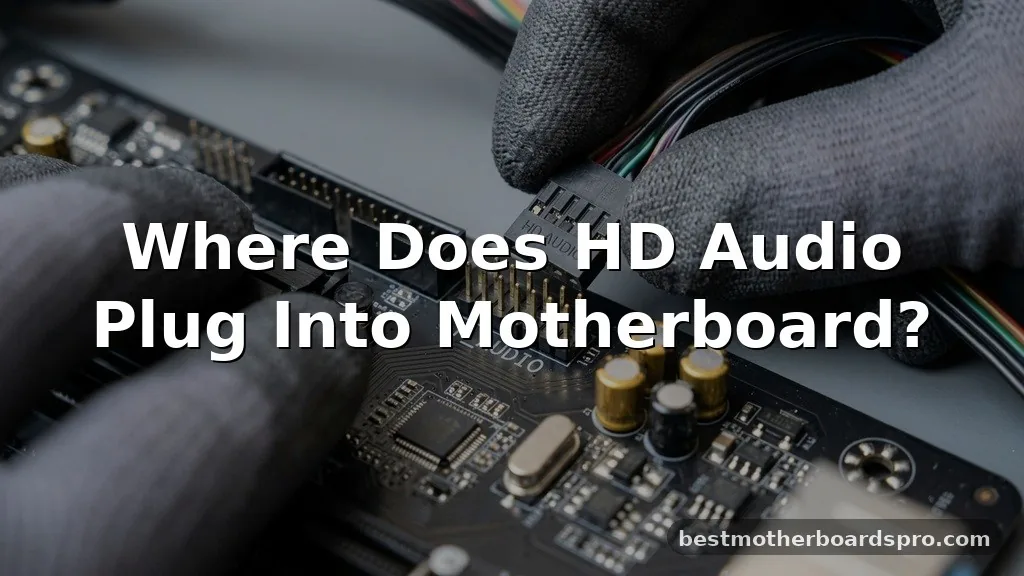
The primary place where the HD audio plugs into your motherboard is a specific pin header usually labeled as “AAFP,” “AUDIO,” or “HD_AUDIO.” You will typically find this located along the bottom edge of the motherboard, often tucked away near the far left side, close to the rear input/output panel area. It is a 10-pin block, but look closely—one pin is usually missing or blocked off to act as a physical key.
This keyed design is your best friend. Because the connector on your case cable will also have a corresponding pin missing or plugged, it is physically impossible to plug it in the wrong way without forcing it. If you feel resistance, stop.
Rotate the connector and try again. It should slide onto the pins with a smooth, firm click.
Why You Need the HD Audio Connection
While some users might wonder if they can simply skip this step, plugging in the HD audio cable is necessary if you want to use the headphone and microphone jacks on your case. Without this connection, your computer will only recognize audio devices plugged directly into the back of the motherboard.
Many modern motherboards support both legacy AC’97 and modern HD Audio standards. While almost every case built in the last decade uses the HD Audio standard, your motherboard BIOS might still have an option to switch between the two. You should always keep this set to “HD Audio” to ensure you get the best signal quality and automatic jack detection, which tells your software when you have plugged in a headset.
Common Motherboard Header Labels
Manufacturers often use different acronyms to identify the audio header. If you are struggling to find the right spot, scan the printed text on your board for these common labels:
- AAFP: Stands for Analog Audio Front Panel; very common on ASUS and Gigabyte boards.
- HD_AUDIO: The most literal and common label used by MSI and ASRock.
- F_AUDIO: Often found on boards where the designer keeps the naming convention simple (Front Audio).
- AUDIO: A generic label that sometimes appears on older or budget-friendly hardware.
Comparing Audio Header Standards
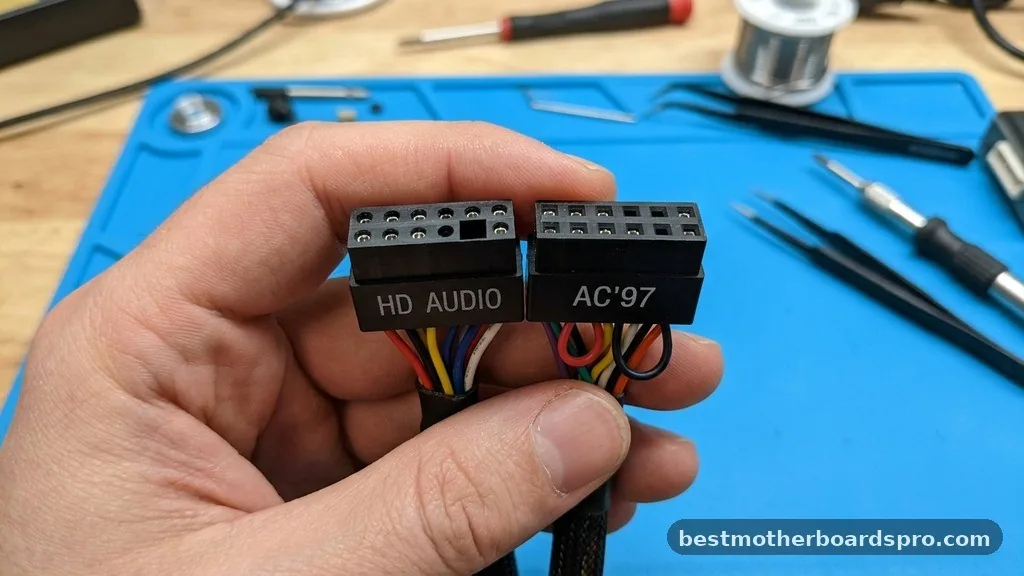
Understanding the difference between older standards and current technology helps clarify why the physical connection matters. The evolution from AC’97 to High Definition Audio brought better signal-to-noise ratios and improved connectivity, making it the industry standard for today‘s hardware.
| Feature | AC’97 | HD Audio |
|---|---|---|
| Audio Quality | Standard | High Fidelity |
| Jack Detection | Limited | Automatic |
| Pin Layout | 10-pin (different mapping) | 10-pin (keyed) |
| Modern Support | Legacy | Universal |
Troubleshooting Connection Issues
If you have plugged in the cable and your front panel audio still does not work, do not panic. Most of the time, the issue is not hardware failure, but a simple software or configuration oversight. First, check your Windows sound settings to ensure the front panel device is set as the default output.
Next, check your motherboard’s audio driver software. Programs like Realtek HD Audio Manager often have a “Connector Settings” menu where you can manually enable or disable front panel jack detection. If the software does not detect that a plug has been inserted, the port will remain silent regardless of how well you have connected the header.
Addressing Topical Gaps: Why Audio Headers Vary
A common point of confusion is why some motherboards have the audio header in different locations. While most boards place it on the bottom left, some compact Mini-ITX boards place it near the top or middle to accommodate tight component layouts. If you cannot find the header, consult the “Internal Connectors” diagram in your motherboard manual.
Another gap users encounter is the “missing” pin. Some boards have a 9-pin configuration (a 10-pin block with one pin removed). This is intentional.
The missing pin is a guide, and if your cable has a hole in the corresponding spot, it ensures you cannot plug it in backward. Always align the blocked pin with the missing pin on the motherboard.
Frequently Asked Questions
Can I plug the HD audio cable into a USB header?
No, you should never plug the HD audio cable into a USB header. They have different pin arrangements and voltage requirements. Plugging an audio cable into a USB header could potentially damage the audio controller on your motherboard or fry the components inside your front panel.
What happens if I plug the HD audio connector in backward?
Modern connectors are “keyed,” meaning they have a blocked hole that prevents you from plugging them in backward. If you force it and manage to connect it incorrectly, you will likely get no audio signal, or you might experience significant static and interference when using your headphones.
Do I need to install specific drivers for the front audio panel?
You generally do not need a separate driver for the front panel itself. However, you must install the latest audio drivers provided by your motherboard manufacturer. These drivers handle the communication between the hardware header and your operating system, enabling the front jacks to function correctly.
Is it safe to plug in the audio cable while the computer is on?
It is not recommended to plug in internal motherboard headers while the computer is powered on. Doing so can cause a short circuit or potentially damage the delicate pins on the motherboard. Always shut down your system and flip the power supply switch to the off position before working inside.
Final Thoughts on Motherboard Audio
Getting your front panel audio working is a small but satisfying part of the PC building process. By identifying the correct AAFP or HD_AUDIO header and ensuring the keyed connector fits securely, you unlock the convenience of front-access ports for your daily tasks. If you ever find yourself troubleshooting, remember that the solution usually lies in a quick BIOS check or a driver update rather than a faulty cable.
Once you have verified the connection, you can enjoy clear, high-quality sound for every game or project you tackle. If you are still having trouble, checking your motherboard manual remains the most reliable way to confirm the exact location for your specific model. Enjoy your build, and don’t hesitate to reach out to community forums if you run into unique hardware quirks.



