
Learning how to update my motherboard is a task that often feels more intimidating than it actually is. While the process involves modifying the fundamental firmware of your computer, following the correct steps ensures your system remains stable and compatible with the latest hardware releases.
Whether you are troubleshooting a persistent stability issue or simply preparing your rig for a new CPU, knowing the precise procedure helps you avoid common pitfalls. By carefully verifying your hardware and adhering to the manufacturer’s official protocols, you can perform these updates with confidence and keep your PC running at peak performance.
Understanding the Role of Your Motherboard BIOS
The BIOS, or Basic Input/Output System, acts as the bridge between your computer’s hardware and the operating system. It initializes your components during the power-on self-test, ensuring that your processor, RAM, and storage drives communicate correctly before Windows even begins to load. When you decide on updating bios, you are essentially replacing the old instructions with a refined version provided by the manufacturer.
These updates often include microcode improvements for better CPU stability, patches for security vulnerabilities, or expanded compatibility for newer hardware components. Think of it as a tune-up for the brain of your computer.
If your system runs perfectly, you might not need to touch the firmware. However, if you are experiencing crashes or installing a next-generation processor, this process becomes essential.
Preparing for the Update Process
Before you initiate any changes, you must confirm your exact hardware specifications. Using the wrong file can lead to a bricked motherboard, which is a situation you definitely want to avoid. Start by opening your system information tool or checking the physical label on the board itself.
Essential Preparation Checklist

- Download the correct firmware file directly from the manufacturer’s support page.
- Ensure your power supply is stable; never update during a thunderstorm or if you suspect electrical issues.
- Format a clean USB flash drive to FAT32, as most boards require this specific file system.
- Disable overclocking settings in your current BIOS to ensure a neutral, stable state during the flash.
- Create a backup of your important data, just in case a system reset occurs.
Identifying Your Current BIOS Version
Knowing your current firmware version is the first step in determining if an update is even necessary. You can find this information without restarting your computer by using built-in system tools.
| Method | Tool Used | Ease of Use |
|---|---|---|
| System Information | msinfo32 | High |
| Command Prompt | wmic bios get smbiosbiosversion | Medium |
| BIOS Menu | UEFI Interface | Low |
Simply pressing the Windows key and typing “System Information” will reveal your current BIOS version under the “BIOS Version/Date” field. Compare this string of numbers against the latest version listed on the official support site for your specific board model. If the version numbers match, you are already up to date.
Methods for Updating Your BIOS
There are several ways to perform this task, depending on the features your board supports. Most modern systems provide a user-friendly interface within the BIOS menu itself.
Using the Internal Flash Utility
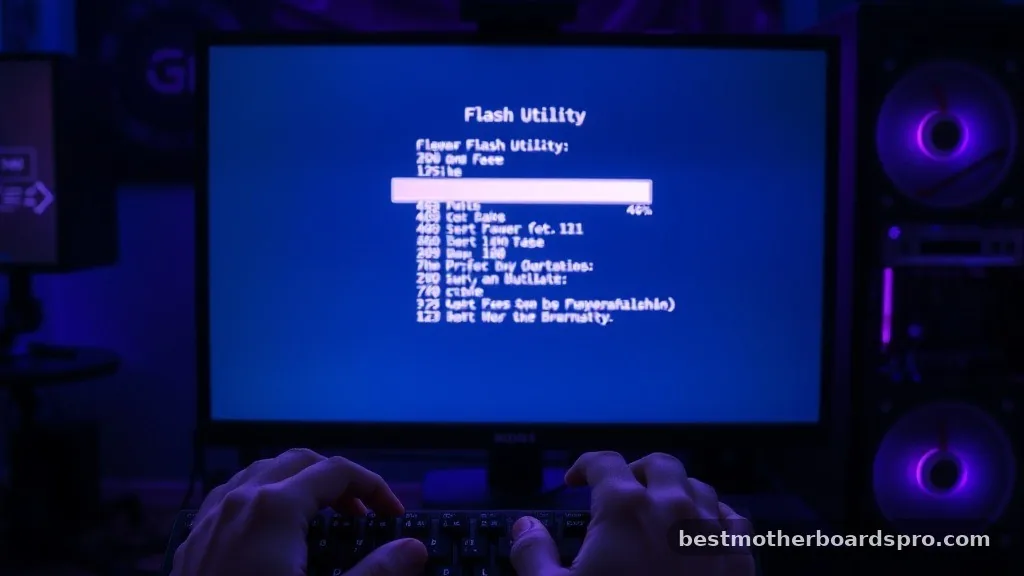
Most contemporary motherboards from brands like Asus, MSI, or Gigabyte include a built-in utility. After placing the firmware file on your USB drive, restart your computer and enter the BIOS by pressing the Delete or F2 key during the boot sequence. Navigate to the “Tools” or “Flash” section, select your file from the USB drive, and confirm the process.
Utilizing BIOS Flashback
If your motherboard supports it, the BIOS Flashback feature is a lifesaver. This method allows you to update without a CPU or RAM installed. You simply plug the USB drive into a specifically labeled port on the back panel and press the Flashback button. This is particularly useful if you bought a new processor that isn’t supported by the current firmware version of your board.
Addressing Topical Gaps and Common Risks
A frequent concern is why it seems so risky to update the firmware. The primary danger is power loss.
If your computer shuts down while the chip is being rewritten, the startup sequence becomes corrupted, often requiring professional repair or a specialized tool to fix. This is why you should always plug your desktop into a reliable power strip or, ideally, an uninterruptible power supply.
Another gap in many guides is the confusion between drivers and BIOS updates. Drivers are software that helps Windows talk to hardware, while the BIOS is the firmware that exists below the operating system. You should update drivers through the manufacturer’s website or Windows Update, but treat the firmware update as a separate, more critical event that happens outside of the Windows environment.
Verifying a Successful Update
Once the progress bar reaches 100% and the computer reboots, do not panic if it takes a few moments longer than usual to post. The system is recalibrating its memory training and hardware detection.
Once you reach the desktop, open your system information tool again to confirm that the new version number is reflected. If the update was successful, your system should feel stable, and any previous hardware-related errors should be resolved.
FAQ
Do I need to update my BIOS if my computer is working fine?
No, you generally do not need to update your firmware if your system is stable. BIOS updates are primarily intended to fix specific bugs, improve compatibility with new hardware, or address security vulnerabilities. If you aren’t experiencing issues, it is often best to leave the current version alone.
What happens if the power goes out during the update?
If power is lost during the flash process, the motherboard may become unresponsive, a state often referred to as being “bricked.” Some high-end boards have dual-BIOS chips or recovery features that can restore functionality, but many will require professional assistance or a physical chip replacement to become operational again.
How do I know which file to download from the manufacturer?
Always visit the official support page for your exact motherboard model. Use the serial number or the specific model name printed on your board to ensure you download the correct firmware. Using a file intended for a different revision of the same motherboard can cause significant system failure.
Can I update my BIOS from within Windows?
While some manufacturers provide software to update firmware directly from Windows, it is generally considered safer to use the BIOS-based flash utility. Updating from within the operating system exposes the process to potential interference from background tasks, drivers, or security software, which can lead to a failed update.
Final Considerations
Learning how to update my motherboard is a milestone for any PC enthusiast. It grants you control over your hardware’s baseline performance and ensures that you can take advantage of the latest technological improvements. By taking your time, using a reliable USB drive, and following the manufacturer’s official instructions, you minimize the risks significantly.
Always remember that the goal is system stability, so if you are performing an update to solve a specific problem, keep notes on your system’s behavior before and after the flash. Should you run into any issues during the process, your first point of contact should be the manufacturer’s technical support, as they can provide specific guidance for your particular hardware revision. With these steps in mind, you are ready to maintain your machine effectively.