When your computer starts acting erratically, it is easy to blame the software or a bloated operating system. However, if you find yourself questioning how to tell if motherboard is failing, you are likely dealing with a hardware foundation that is literally crumbling. The motherboard acts as the central nervous system of your machine, connecting the processor, memory, and storage into a single, cohesive unit.
When this backbone begins to degrade, the symptoms often mimic other, less severe issues, making diagnosis a frustrating process for even experienced users. Understanding these subtle cues before a total system collapse is essential for data protection and hardware longevity.
Recognizing the Physical Symptoms of Motherboard Degradation
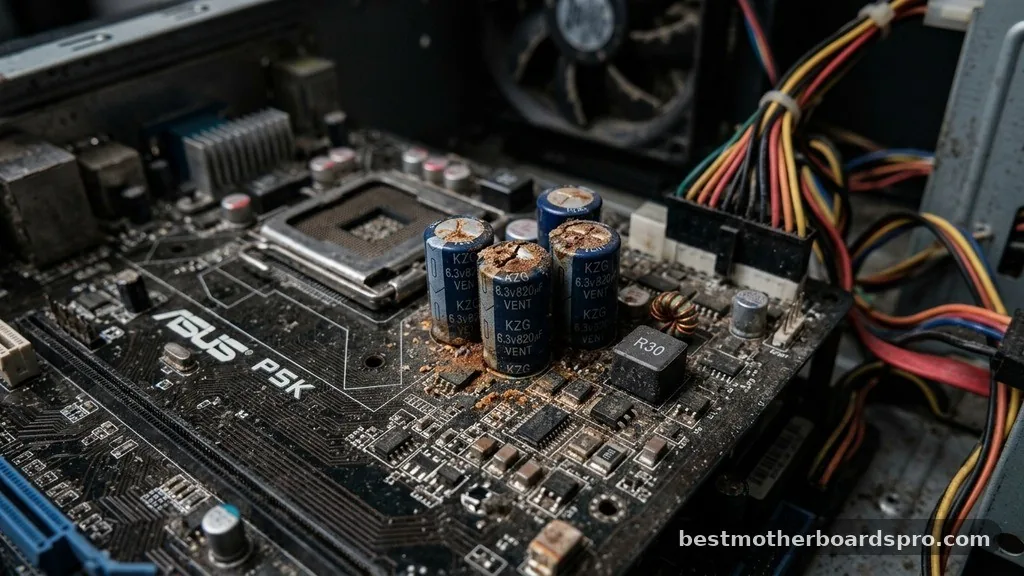
The most reliable way to identify hardware distress is to look for physical indicators inside the chassis. Because the motherboard is the main circuit board, it contains dozens of capacitors and transistors that can fail over time. When these components break down, they often leave visible evidence.
If you suspect your system is having trouble, shut it down completely, unplug the power cable, and open the side panel. Look for the following signs:
- Bulging Capacitors: These small, cylindrical components should have perfectly flat tops. If the tops appear domed or show signs of brown crusty leakage, the motherboard is likely on its way out.
- Burn Marks: Any dark, discolored, or charred spots on the PCB (printed circuit board) indicate a short circuit that has already caused permanent physical damage.
- Corrosion or Oxidation: White or greenish residue near the soldering points suggests that moisture has compromised the board’s electrical pathways.
- Loose Ports: If your USB or video output ports feel wobbly or disconnected from the board, the physical solder joints may be failing due to thermal stress.
If you notice any of these signs, the hardware has reached a critical stage. Unlike software-based glitches, physical damage to a motherboard is rarely worth a professional repair because the cost of labor often exceeds the value of a replacement board.
Unexpected System Behavior and Random Crashes
Beyond physical inspection, the way your operating system behaves provides a wealth of information about the health of your board. A failing motherboard often struggles to maintain a steady flow of electricity to connected devices. This instability frequently manifests as random system behavior.
You might experience sudden, unprovoked reboots while performing low-intensity tasks. If your system keeps crashing even after you have reinstalled the operating system, the logic board is likely failing to communicate with your hardware components properly. These “random” issues are often the result of failing voltage regulators or broken data buses that can no longer transmit signals at the necessary speeds.
| Symptom | Likely Cause | Severity |
|---|---|---|
| Blue Screen of Death (BSOD) | Memory or Motherboard Bus Error | High |
| Random Shutdowns | Power Delivery Failure | Critical |
| Unrecognized Hardware | BIOS/Chipset Degradation | Moderate |
| Stuck at POST Screen | Dead BIOS or Boot Failure | Critical |
Troubleshooting Peripheral and Component Connectivity
Sometimes the motherboard isn’t dead, but it is slowly losing the ability to talk to specific components. If your keyboard, mouse, or external drives intermittently stop working, don’t immediately assume the peripheral is broken. If the issue persists across different USB ports, the motherboard’s southbridge chip or internal controller is likely the culprit.
Another common sign involves the RAM slots. If your computer refuses to boot and emits a series of beeps, the system is attempting to alert you to a hardware detection failure. Try reseating your RAM sticks into different slots.
If the system only boots when specific slots are empty, you have identified a localized failure on the board. This is a classic indicator that the motherboard is failing to initialize the memory controller properly.
The Role of BIOS and Firmware in Diagnostics
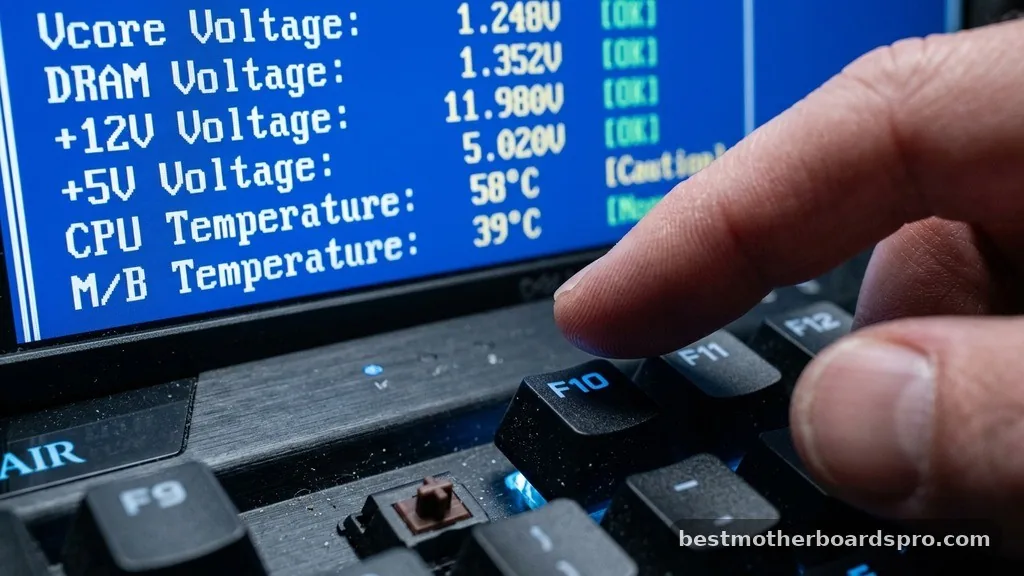
The BIOS (Basic Input/Output System) or UEFI is the first line of defense when troubleshooting motherboard health. If you are struggling with how to tell if motherboard is failing, spend some time in the BIOS menu immediately after turning on your computer.
If the system freezes while you are inside the BIOS, you can rule out the hard drive and the operating system entirely. A freeze at this stage points directly to the motherboard, the CPU, or the power supply.
Additionally, if the BIOS fails to detect your storage drives consistently, it means the SATA controllers or M.2 slots are not maintaining a stable connection. Always ensure your firmware is updated to the latest version provided by the manufacturer, as this can sometimes patch minor communication issues between the board and your hardware.
Addressing Potential Power Supply Overlap
One of the most difficult parts of diagnosing a motherboard is distinguishing it from a failing power supply unit (PSU). Both components can cause random shutdowns, boot failures, and system instability. To differentiate between the two, you need to be methodical.
If you have access to a spare power supply, swap it out to see if the symptoms disappear. If the computer still fails to boot or continues to crash, the motherboard is almost certainly the issue.
A failing motherboard often fails to regulate the power it receives from the PSU, leading to uneven voltage delivery to the CPU and RAM. This is why a “dead” motherboard often looks identical to a “dead” power supply to the untrained eye.
Common Topical Gaps in Motherboard Diagnostics
Many users search for answers regarding motherboard longevity, yet rarely find information about environmental factors. Extreme heat is the primary enemy of any circuit board.
If your computer lives in a dusty environment or a room with high humidity, the motherboard is much more likely to fail prematurely. Dust acts as an insulator, trapping heat against the delicate solder joints, while humidity causes microscopic oxidation.
Another overlooked issue is the “battery” on the motherboard. Most boards use a CR2032 coin cell battery to store BIOS settings. If your computer forgets the time and date every time you unplug it, the battery is dead.
While this is a cheap fix, failing to replace it can sometimes cause the system to struggle during the initial boot sequence, mimicking a more severe motherboard failure. Don’t let a $5 battery lead you to believe you need a $200 board replacement.
FAQ
How do I check if my motherboard is faulty?
The best way to check is to perform a “bare-bones” boot. Remove all non-essential components like GPUs, extra hard drives, and peripherals, leaving only the CPU, one stick of RAM, and the power supply. If the system still fails to POST or emits error beeps, the motherboard is likely faulty.
Can motherboard failure be fixed?
In most cases, no. While a professional lab could theoretically resolder components, the cost of specialized labor almost always exceeds the price of a new, modern motherboard. It is generally more reliable and cost-effective to replace the board entirely rather than attempting a board-level repair.
How much will it cost to replace a motherboard?
Replacement costs vary significantly based on your system’s age and socket type. A budget-friendly board might cost between $80 and $150, while high-end gaming or workstation boards can exceed $400. You must also account for potential labor costs if you are not comfortable performing the installation yourself.
Is it worth repairing a motherboard?
Usually, it is not worth repairing a motherboard unless it is a vintage machine or a high-end enterprise server. For modern consumer PCs, the time, labor, and risk involved in a repair outweigh the benefits, especially since a new board often comes with updated features and a warranty.
Final Thoughts on Hardware Health
Identifying when your core hardware is reaching the end of its life cycle is a vital skill for any computer user. By paying attention to the physical signs, such as bulging capacitors, and monitoring how the system handles boot sequences and component detection, you can prevent sudden data loss. While the prospect of a failing motherboard is never welcome, catching the issue early gives you time to back up your critical files and plan for a system upgrade.
If you find that your troubleshooting steps consistently point toward the board, it is usually time to move on to a replacement. Do not wait for a complete “dead” state to act, as that can sometimes lead to file corruption or issues with other connected components. If you have questions about specific error codes or need help identifying a component, feel free to share your system’s symptoms in the comments section below.