
Figuring out what is my motherboard model shouldn’t feel like a chore, yet many users find themselves staring at a blank screen or a pile of cables wondering where to start. Whether you are planning a hardware upgrade, troubleshooting a driver conflict, or simply curious about your system‘s architecture, knowing the exact hardware ID is essential.
You don’t need to be a professional technician to extract this information, as your operating system keeps a detailed log of every component installed inside your case. By following a few straightforward steps, you will quickly identify the specific baseboard powering your computer without needing to open the chassis or touch a single screwdriver.
Using Windows System Information for Quick Identification
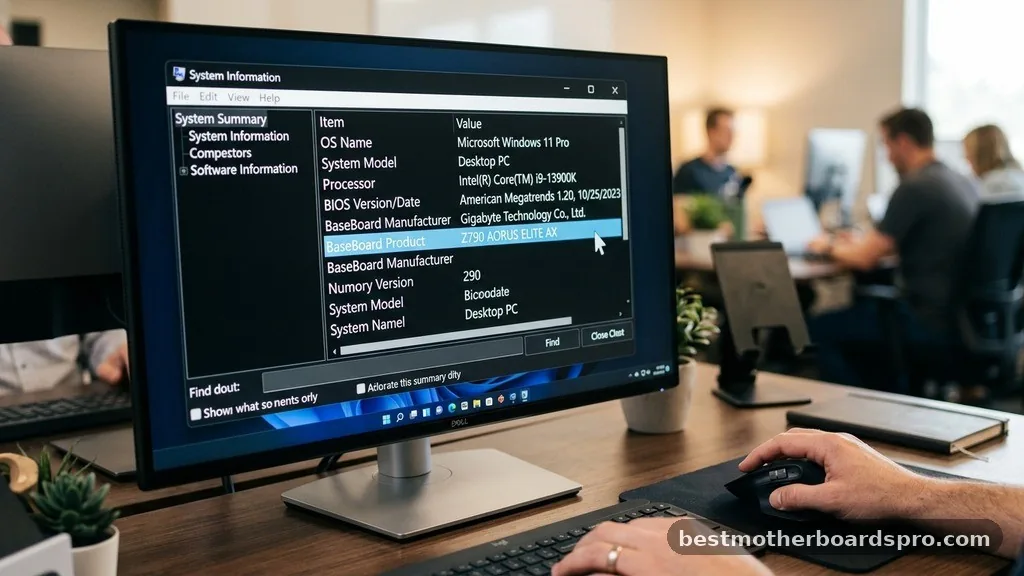
The most direct way to see your motherboard model is through the built-in System Information tool. This utility provides a snapshot of your hardware configuration, including the manufacturer and the specific board name.
To get started, press the Windows key on your keyboard and type “msinfo32” into the search bar. Once the System Information window opens, look for the “System Summary” category on the left sidebar.
In the right-hand panel, scroll down until you locate the “BaseBoard Manufacturer,” “BaseBoard Product,” and “BaseBoard Version” entries. These three fields will provide the exact details you need.
If you see “BaseBoard Product” listed as “Not Available,” don’t panic. Sometimes, pre-built computers from manufacturers like Dell or HP use proprietary naming schemes that don’t always broadcast perfectly through standard Windows tools. In these cases, you might see the system model name instead, which is often sufficient for finding support drivers on the manufacturer’s website.
Leveraging the Command Prompt for Detailed Hardware Data
If you prefer a faster, text-based approach, the Command Prompt is an incredibly powerful tool. It bypasses the graphical interface and pulls the data directly from the WMI (Windows Management Instrumentation) layer of your system.
Open the Command Prompt by typing “cmd” in your search bar and pressing Enter. Once the black window appears, type the following command exactly as shown:
wmic baseboard get product,Manufacturer,version,serialnumber
After you press Enter, the system will display the manufacturer and model name directly below the headers. This method is highly reliable because it queries the board’s firmware directly. If you ever need to verify if a replacement part matches your current setup, this is the most accurate way to retrieve the product ID.
Checking the UEFI BIOS for Hardware Specifications
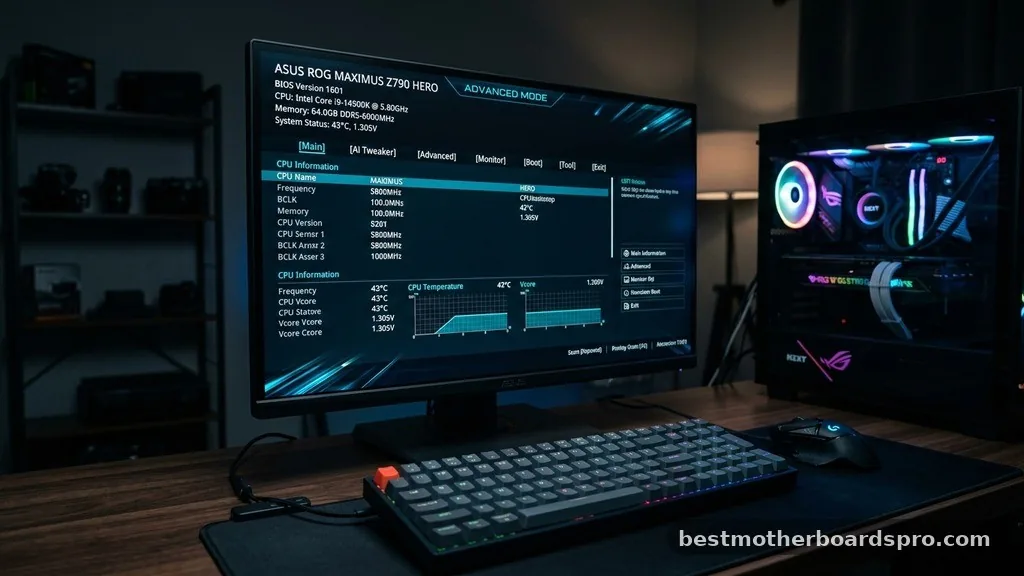
Sometimes, you need to check your hardware before Windows even loads. Entering the UEFI BIOS is the safest way to view your motherboard model if your operating system is currently corrupted or if you are building a new system from scratch.
To access this, restart your computer and repeatedly press the key designated for your specific machine during the boot process—usually F2, F12, Del, or Esc. Once the BIOS screen appears, look for a tab labeled “Main,” “System Information,” or “Hardware Monitor.” Most modern boards from companies like ASUS, MSI, or Gigabyte display the model name prominently on the home screen.
Why BIOS Information is More Reliable
The data stored in the BIOS is etched into the non-volatile memory of the motherboard itself. Unlike software-based reporting tools that rely on drivers, the BIOS reports the hardware identity at the most fundamental level. This makes it the “ground truth” for your system.
- Direct Source: Provides the exact manufacturer-intended product name.
- Hardware Level: Doesn’t rely on Windows drivers or OS updates.
- Troubleshooting Ready: Often displays the current firmware version, which is critical for compatibility.
- Component Verification: Helps you confirm if your RAM or CPU is correctly recognized by the board.
Identifying Your Board Physically
If your computer won’t turn on or the software methods fail to yield a clear result, you can always inspect the motherboard physically. This is common when working with older systems or custom-built PCs where the software reporting might be generic.
Before opening your case, ensure the power cable is disconnected. Remove the side panel and look for the model name printed directly onto the PCB (printed circuit board). It is usually located near the CPU socket, between the PCIe slots, or near the RAM DIMM slots.
Common Locations for Model Numbers
| Manufacturer | Common Label Placement | Example Format |
|---|---|---|
| ASUS | Near the CPU socket or PCIe slots | ROG STRIX Z790-E |
| MSI | Near the RAM slots or bottom edge | MAG B650 TOMAHAWK |
| Gigabyte | Near the rear I/O shield | AORUS ELITE AX |
| ASRock | Printed on the board center | B760M PRO RS |
Addressing Common Topical Gaps
Many users struggle when their motherboard model appears as “To be filled by O.E.M.” in system tools. This typically happens with pre-built systems from major retailers. The manufacturer uses a custom board made specifically for their chassis, so they don’t bother flashing a retail model name into the firmware.
In this scenario, searching for the “System Model” or “Computer Model” found in the System Information window is your best bet. If you have a laptop, simply searching for the laptop’s model number (e.g., “Dell Inspiron 15 5000”) will lead you to the specific motherboard specifications used in that production run. Do not worry about finding a specific “board” model name if you are looking for drivers; the manufacturer’s support portal for your specific laptop or desktop model is designed to handle this for you.
FAQ
Can I check my motherboard model without opening the computer?
Yes, you can easily check your motherboard model using Windows tools like System Information (msinfo32) or the Command Prompt (wmic). These methods pull data directly from your system firmware, allowing you to see the exact model name without ever needing to touch the physical hardware or open your case.
What if the motherboard model name is missing in Windows?
If Windows displays “Not Available,” you are likely using a pre-built computer from a company like HP or Dell. These manufacturers often hide the specific board model. Instead, search for your computer’s model number on the manufacturer’s website to find all the relevant drivers and hardware specifications.
Is it possible to see the motherboard model in the BIOS?
Yes, the BIOS or UEFI menu is the most reliable way to identify your hardware. By restarting your computer and pressing the setup key (usually F2 or Del), you can view the motherboard model name, BIOS version, and other critical system details directly from the hardware’s own internal memory.
Does the motherboard model number change with software updates?
No, the hardware model name remains constant. However, updating your BIOS firmware might change the version number or the way the model name is reported by software. The physical board itself never changes, even if you update your drivers or your operating system version over time.
Conclusion
Identifying your hardware is a straightforward process that saves time when you need to install drivers or check compatibility for future upgrades. Whether you choose to use the Windows System Information tool, the Command Prompt, or a physical inspection of the board, you now have the knowledge to find your motherboard model whenever the need arises. Always remember that for pre-built systems, the manufacturer’s support site remains your best resource for matching components to your specific machine.
If you ever find yourself stuck, checking the BIOS usually provides the final word on what is powering your PC. With these steps in your toolkit, you are ready to manage your system with confidence and maintain your hardware effectively for years to come.