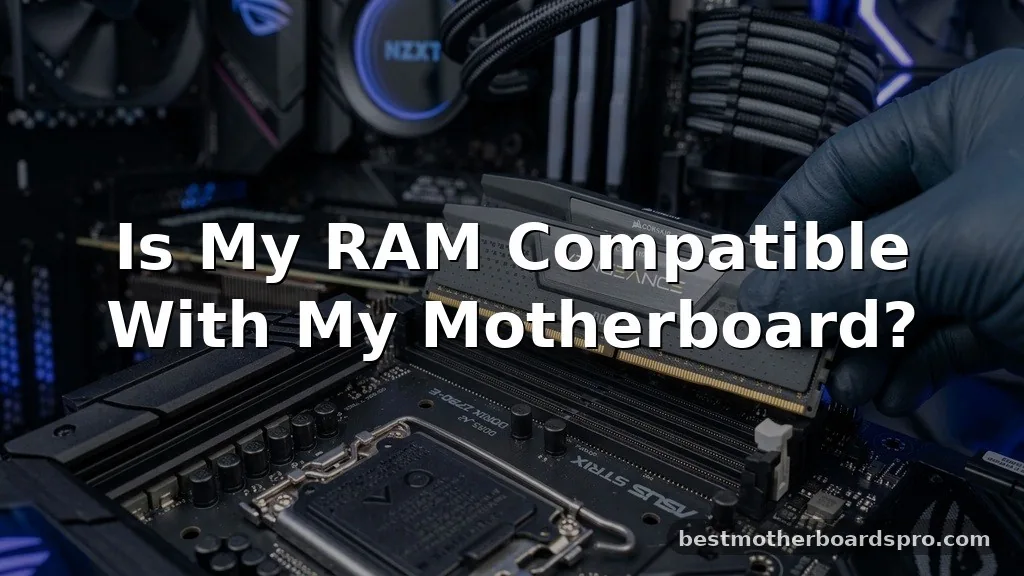
Determining whether your new memory sticks will function correctly inside your computer is a critical step for any upgrade. If you have been wondering if my RAM is compatible with my motherboard, you are definitely not alone, as this is one of the most common hurdles for PC builders and upgraders.
Mismatched hardware can lead to boot failures, system instability, or simply a computer that refuses to turn on at all. By learning how to identify your specific hardware requirements, you can avoid these headaches and ensure your memory upgrade provides the performance boost you expect for your gaming sessions or heavy workloads.
Understanding Memory Standards and Generations
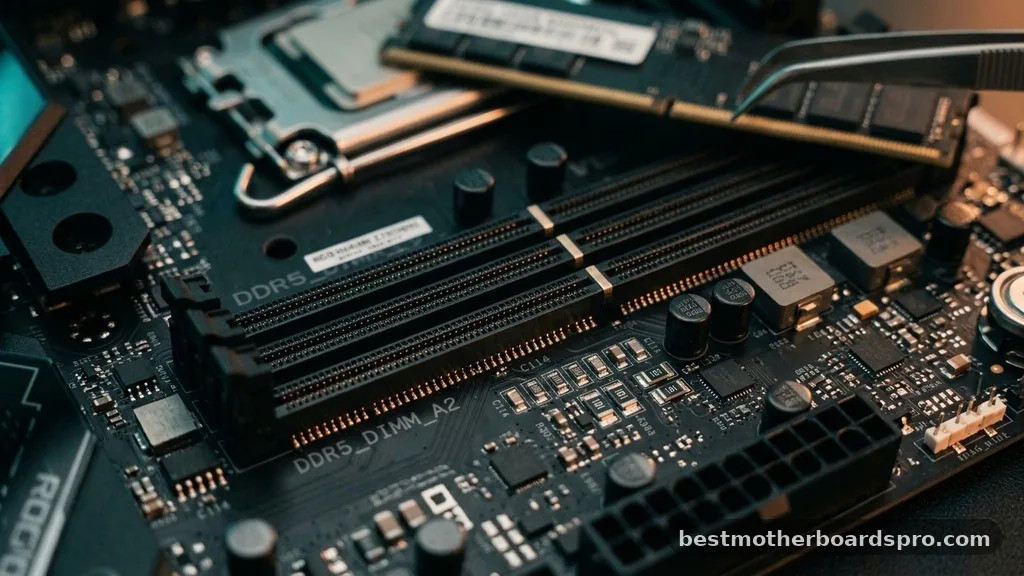
Before you purchase any new sticks, you must understand that RAM is not a universal component. Every motherboard is designed to support specific generations of memory, such as DDR4 or DDR5. You cannot physically insert a DDR5 module into a slot designed for DDR4, as the physical notches on the connector—known as keys—are positioned differently to prevent accidental damage.
The system architecture relies on these physical and electrical standards to communicate effectively. If you try to force a stick into a slot where it doesn’t belong, you risk damaging the pins on your motherboard or the gold contacts on the memory module itself. Always verify the generation supported by your CPU and chipset before looking at specific brands or speeds.
The Role of the Motherboard Make and Model
The most reliable way to confirm your hardware’s support is to look up the exact make and model of your motherboard. Every manufacturer provides a Qualified Vendor List (QVL) on their official website. This list contains every specific module that the engineers have tested and verified to work perfectly with that particular board.
If you don’t know your motherboard’s exact identity, you can use software tools to find it. Utilities like CPU-Z or even the built-in System Information tool in Windows can reveal your motherboard’s manufacturer and model number. Once you have that information, you can search for the support page to find the memory compatibility section.
| Component | What to Check | Why it Matters |
|---|---|---|
| RAM Generation | DDR4 vs DDR5 | Physical slot shape and electrical signaling. |
| Capacity | Maximum GB support | Motherboards have a hard cap on total addressable memory. |
| Frequency | MHz or MT/s rating | Higher speeds may require XMP/DOCP profiles to function. |
Checking Memory Speed and Timing
Beyond the generation, you must also consider the frequency and latency of the memory. While most motherboards are backward compatible—meaning they can run faster RAM at a slower speed—there is no guarantee that a specific high-speed kit will reach its advertised performance on an older board. This is where the BIOS comes into play.
When you install high-performance memory, you often need to enter the BIOS or UEFI settings to enable an overclocking profile, commonly referred to as XMP (Extreme Memory Profile) or DOCP. Without enabling this, your computer might default to a lower, standard speed, leaving performance on the table. Always check if your board supports the specific frequency of the modules you intend to buy.
Tools to Simplify the Process
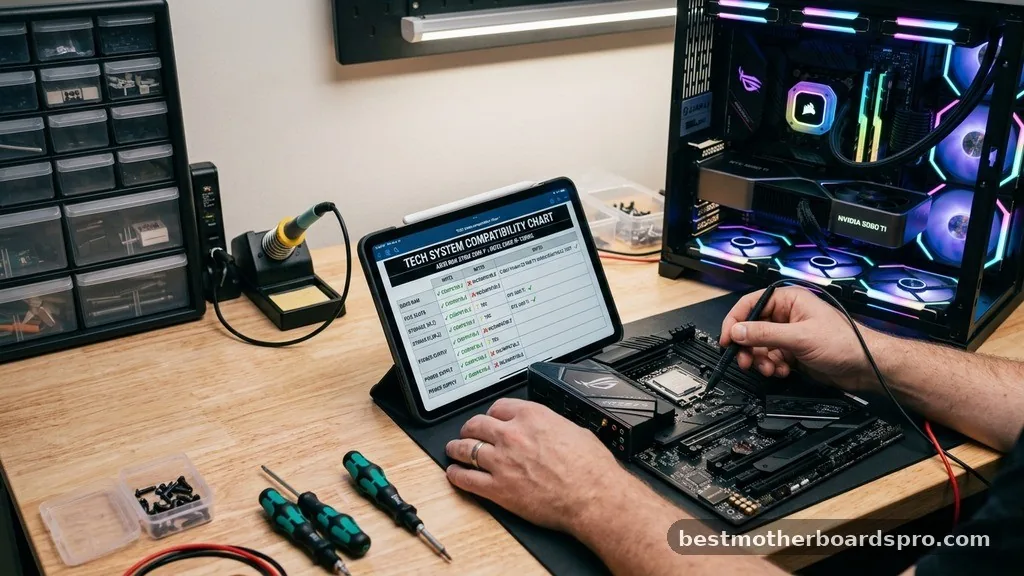
If manually checking the QVL feels daunting, you can use a digital compatibility tool. Many major memory manufacturers, such as Corsair, Crucial, and Kingston, provide automated scanners on their websites. These tools scan your existing system configuration and suggest parts that are guaranteed to work.
- Use the official manufacturer website of your motherboard for the most accurate QVL data.
- Leverage online system scanners from reputable RAM vendors to narrow down your options.
- Consult the CPU manual, as the memory controller is often built into the processor, which can influence support.
- Check forums or PC building communities to see if others have successfully used specific kits with your board.
Addressing Common Compatibility Gaps
One major gap many users encounter is the difference between desktop and laptop memory. Desktop motherboards use DIMM slots, which are physically larger, while laptops use SO-DIMM slots, which are significantly shorter.
They are not interchangeable under any circumstances. If you are upgrading a laptop, you must search for “SO-DIMM” specifically.
Another frequent issue involves the maximum capacity of your motherboard. Even if the RAM fits physically, your board may only support up to 32GB or 64GB of total system memory.
Exceeding this limit can cause the system to ignore the extra capacity or fail to post. Always confirm the “Max RAM” capacity listed in your motherboard’s technical specifications page before purchasing a high-capacity kit.
What Happens If You Use Incompatible RAM
If you ignore the compatibility checks and install hardware that isn’t supported, your system will usually alert you immediately. The most common symptom is a “No POST” scenario, where the fans spin and the lights turn on, but the screen remains black. Some modern motherboards include debug LEDs or a speaker that emits “beep codes” to tell you exactly where the boot process is failing.
If the system does manage to boot, you might experience random blue screens (BSOD), frequent application crashes, or data corruption. These issues often stem from the motherboard failing to negotiate the correct voltage or timing with the RAM. If you suspect your memory is the culprit, the first step is to remove the new sticks and see if the system returns to a stable state.
Frequently Asked Questions
How do I find out if my RAM is compatible with my motherboard?
The most reliable method is to locate your motherboard’s model number and search for its official support page. Look for the “Memory Support” or “QVL” list. This document lists every specific model of RAM that the manufacturer has verified to work with your board.
Does my RAM have to be compatible with my motherboard?
Yes, your memory must be physically and electrically compatible with your motherboard. If the generation (like DDR4 or DDR5) doesn’t match the slot, it won’t fit. Even if it fits, the motherboard must support the specific speed and capacity of the modules to ensure a stable system.
Can I mix different brands of RAM in my system?
It is generally discouraged to mix different brands, speeds, or capacities of RAM. While it can work, it often leads to instability. The system will usually downclock all sticks to match the speed of the slowest module, which can degrade your overall performance and cause unexpected errors.
How do I know if my RAM is compatible with my laptop?
Laptops require SO-DIMM modules, which are smaller than desktop DIMMs. You should check your laptop manufacturer’s service manual or use a system scanner tool on a memory vendor’s website. These tools identify your specific laptop model and provide a list of modules that are guaranteed to fit and function.
Final Thoughts on System Upgrades
Verifying that your new memory will work with your existing hardware is the best way to ensure a smooth upgrade experience. By taking the time to check your motherboard’s QVL, understanding the physical differences between RAM generations, and utilizing online compatibility tools, you can confidently choose the right components for your system. If you find that the process of determining if my RAM is compatible with my motherboard feels overwhelming, stick to the recommendations provided by the major memory manufacturers’ scanners.
These tools take the guesswork out of the equation, allowing you to focus on the performance gains of your newly upgraded system. If you ever run into trouble, remember to consult your motherboard’s manual for specific troubleshooting steps, and don’t hesitate to reach out to community forums if you need extra help.