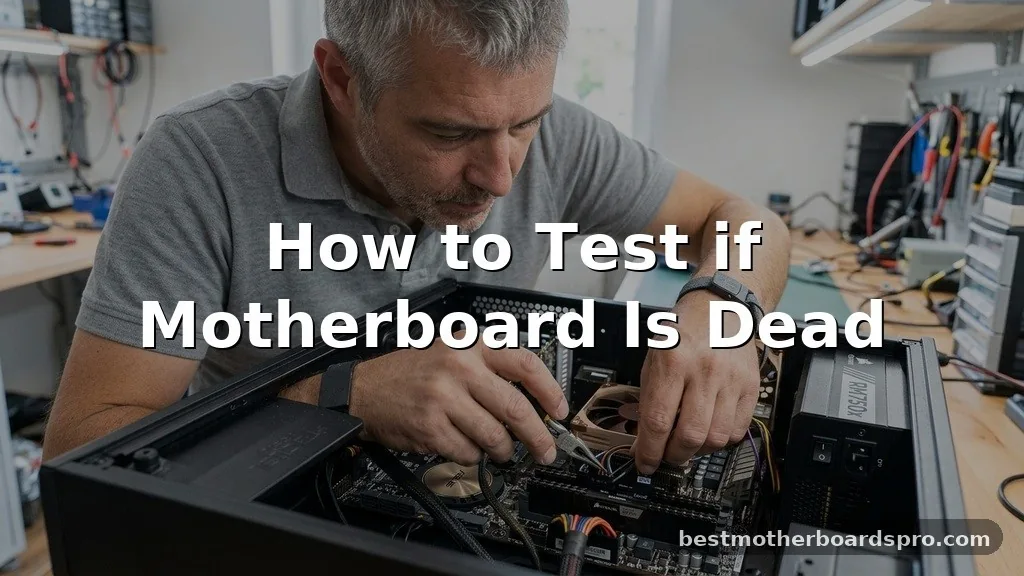
When your computer fails to boot, the immediate fear is often that the heart of the system has stopped beating. Learning how to test if motherboard is dead is a vital skill that saves you from replacing perfectly functional parts. Many users rush to buy a new system when a loose cable or a faulty power button was the only real culprit.
By systematically isolating the hardware, you can pinpoint exactly which piece of silicon is causing the silence. This process requires patience, a bit of curiosity, and the willingness to open your case to inspect the internal components directly.
Initial Power Checks and Physical Inspection
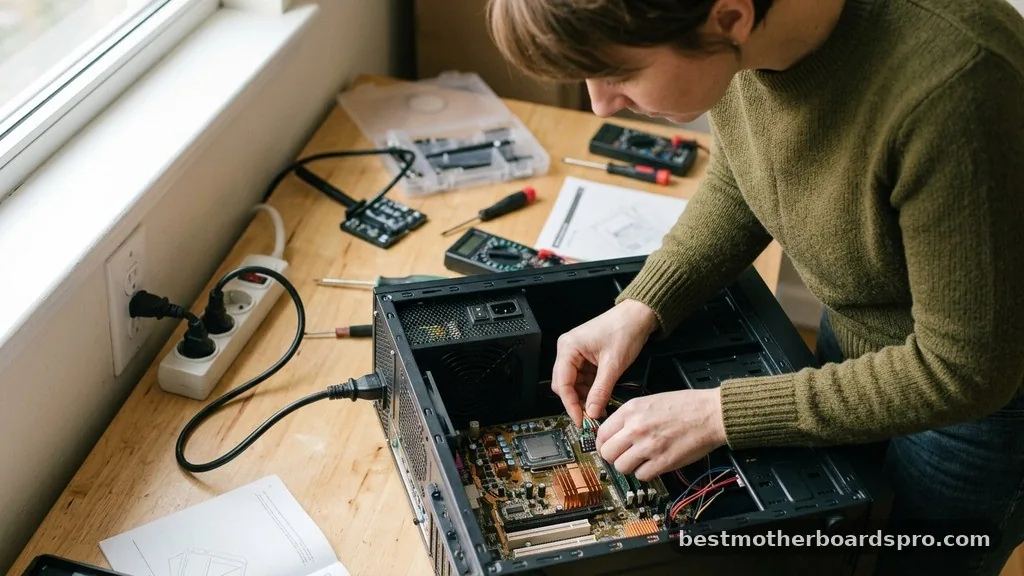
Before you assume the worst, verify that electricity is actually reaching your hardware. Start by checking the wall outlet and the power cable itself, as these common points of failure are often overlooked. Inspect the power supply unit (PSU) to ensure the switch on the back is toggled to the “on” position.
If your case has front panel buttons, ensure the internal headers are securely attached to the motherboard pins. A loose wire here often mimics a total motherboard failure perfectly.
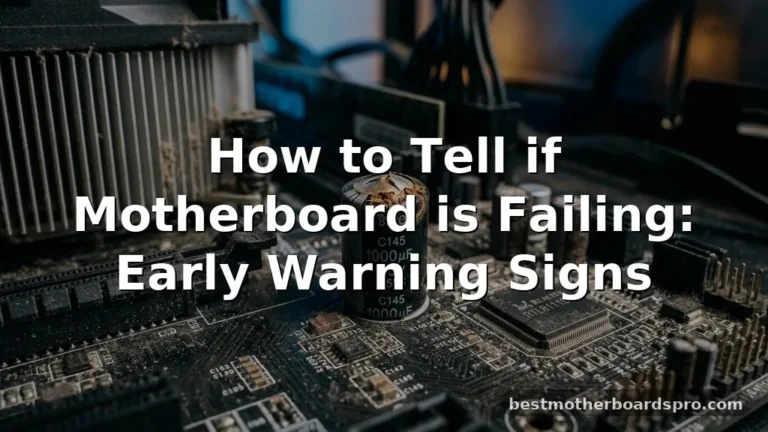
Check for obvious physical signs of damage on the board, such as swollen or leaking capacitors. These small, cylindrical components should have flat tops; if they look domed or have a brownish crust, the board has likely reached the end of its life.
Also, check for any burnt smells or blackened traces near the VRMs, which are the power regulation components surrounding your CPU. A clear, visual inspection can often save you hours of technical troubleshooting.
Isolating the Power Supply Unit
The power supply is frequently misidentified as the primary problem when a machine won’t turn on. If your system is completely unresponsive, the PSU might be failing to provide the necessary voltage to the rest of the computer. You can perform a simple “paperclip test” to see if the fan inside the power supply spins up, which indicates it is at least receiving power.
- Unplug all cables from the motherboard and drives.
- Locate the 24-pin connector that usually attaches to the board.
- Use a small, bent paperclip to bridge the green wire pin with any black ground wire pin.
- If the PSU fan starts spinning, the unit is likely functional.
Be cautious when working with power supplies, as they hold a charge even when unplugged. If the fan does not spin during this test, your power supply is definitively dead, and replacing it is the first logical step before assuming the motherboard is the issue.
Minimum Hardware Configuration
When you need to perform a more rigorous test, stripping the system down to its bare essentials is the most effective approach. This method, often called “breadboarding,” removes variables that might be shorting out the circuit or preventing a successful POST (Power-On Self-Test).
Remove all peripheral devices, including graphics cards, hard drives, and extra USB headers. Leave only the CPU, one stick of RAM, and the power supply connected.
If the system manages to reach the BIOS screen in this configuration, one of your removed components is the actual culprit. If the system remains silent, you have effectively narrowed the field to the board, the processor, or the power delivery system.
Comparing Potential Hardware Failures
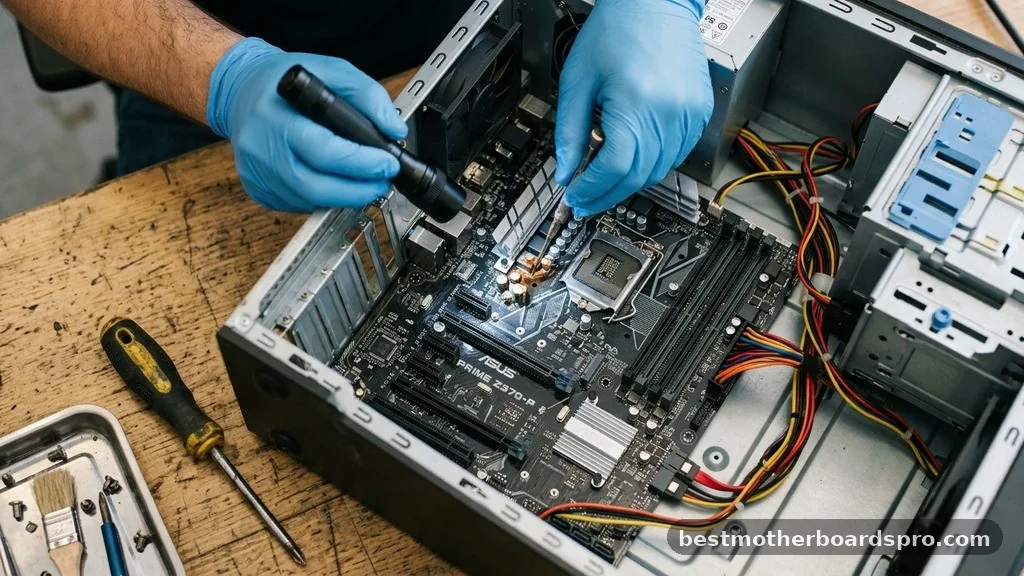
Understanding the difference between a faulty component and a dead board helps in deciding your next move. Use this table to differentiate common symptoms.
| Symptom | Likely Culprit | Action Required |
|---|---|---|
| Fans spin for a second then stop | Short circuit or dead PSU | Check standoffs and cables |
| No lights, no fans, no sound | Dead PSU or dead motherboard | Paperclip test the PSU |
| Beep codes at startup | RAM or GPU issues | Reseat memory and graphics card |
| System cycles on and off | CPU overheating or bad RAM | Check thermal paste and RAM |
The Role of RAM and BIOS
Your RAM is a frequent source of boot issues that masquerade as a dead board. If the memory modules are not seated correctly, or if the contacts are oxidized, the system will often refuse to boot. Try removing all memory sticks and inserting just one into a different slot.
If your board has an LED debug display or a small speaker, listen for beeps. A lack of beeps, even with no RAM installed, is a strong indicator that the motherboard’s basic logic is not functioning.
If you have a clear CMOS jumper or a battery on the board, try resetting the BIOS settings. Sometimes, a corrupted configuration prevents the system from starting correctly.
Simply remove the coin-shaped CR2032 battery for about thirty seconds and replace it. This clears the non-volatile memory and forces the board to reload default hardware parameters.
Advanced Troubleshooting: When to Seek Professional Help
If you have performed the bare-bones test and cleared the CMOS but the system still shows no signs of life, you might be dealing with a catastrophic hardware failure. At this stage, professional diagnostic tools are required to verify the integrity of the traces on the board. Most home users do not have access to a multimeter for testing specific voltage rails on the motherboard itself.
If you are comfortable with electronics, checking the voltage output on the 24-pin connector while it is plugged into the board can tell you if the motherboard is drawing power correctly. However, if the board is truly dead, it is rarely cost-effective to repair it. Replacing the unit with a new board is almost always the standard solution for system failure.
Frequently Asked Questions
How can I tell if my motherboard is definitely broken?
If you have tested the power supply, tried booting with only the CPU and one stick of RAM, and reset the CMOS battery without any response, the motherboard is likely dead. A total lack of indicator lights or fan movement suggests the board is no longer distributing power.
Can a dead motherboard be revived?
In rare cases, a motherboard might be revived by clearing the CMOS or reseating components that have loosened over time. However, if the physical circuitry, capacitors, or BIOS chip have failed, the board generally cannot be repaired and usually requires a full replacement to function again.
Will a dead motherboard still show indicator lights?
Sometimes a motherboard will show standby lights even if the main circuitry is dead. If you see lights on the board but the system won’t start, the issue might be a faulty power button, a bad CPU, or a short circuit caused by a standoff touching the board.
What is the most common reason for motherboard failure?
The most common causes include power surges, overheating, or physical damage to the pins and components. Over time, capacitors can also leak or bulge, leading to a gradual loss of functionality. Keeping your system clean and using a high-quality surge protector helps prevent these issues.
Conclusion
Identifying the cause of a silent computer often feels daunting, but breaking the process into logical steps makes the task manageable. By isolating your components and performing basic power checks, you can determine if you are actually dealing with a terminal motherboard failure or something as simple as a loose connection. While finding out your board is dead is never the news you want to hear, confirming the source of your problems is the first step toward getting your gaming rig or workstation back in action.
If you have followed these steps and still find no signs of life, it is time to look into a replacement. Don’t hesitate to reach out to a local technician if you need a second pair of eyes on the hardware.