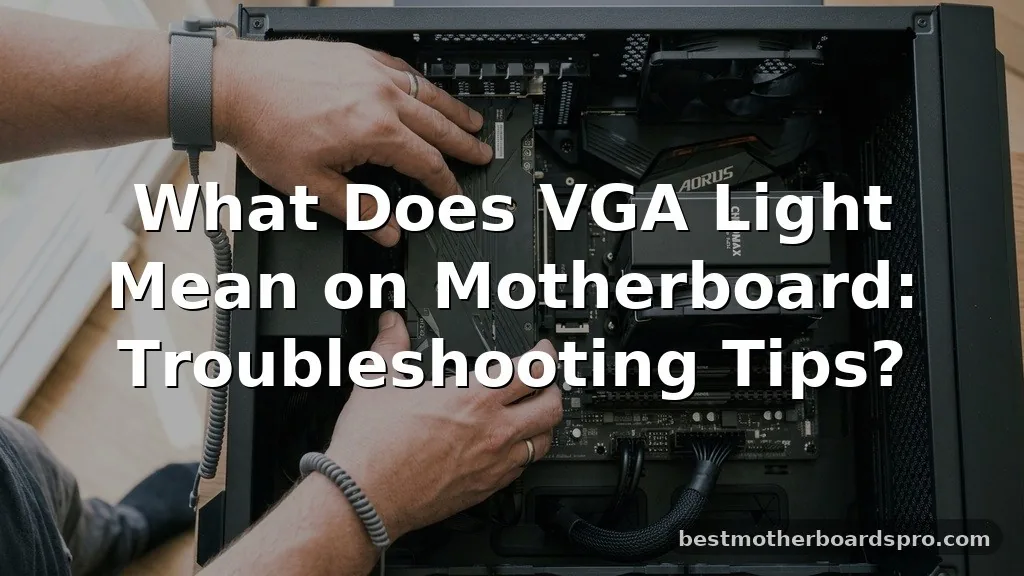
Seeing a glowing LED on your computer’s main board is rarely a good sign, especially when you are trying to figure out what does vga light mean on motherboard during a startup attempt. This indicator is part of the system’s self-diagnostic sequence, signaling that the hardware has hit a snag while trying to initialize the display output.
If you have just built your PC or suddenly find yourself staring at a black screen, this light is your primary clue for identifying the bottleneck. Understanding how your system communicates these errors will save you hours of guesswork and help you get back to your desktop or gaming session quickly.
The Role of Motherboard Debug LEDs
Modern motherboards are equipped with a series of small indicator lights designed to simplify the diagnostic process. These are often referred to as motherboard debug LEDs or Q-LEDs on some premium boards. During the Power-On Self-Test, or POST, the system checks the health and connectivity of critical components like the CPU, RAM, and the graphics card.
When the system reaches the stage where it needs to initialize the display adapter, it checks the connection to your GPU. If the motherboard cannot detect the graphics card or if it fails to receive a signal, the VGA light stays illuminated. This light effectively tells you that the system has successfully passed the CPU and memory checks but is stuck at the video output phase.
Common Causes for the VGA Error Light
Several factors can trigger this diagnostic warning, ranging from simple loose connections to more complex hardware failures. Before assuming your components are dead, look for the most common culprits.
- GPU seating issues: The graphics card may not be fully engaged in the PCIe slot.
- Missing power cables: Many high-performance cards require dedicated power from the power supply unit (PSU) that users sometimes forget to plug in.
- Display connection errors: Sometimes the issue isn’t the card itself, but the connection between the card and the monitor.
- BIOS settings: Outdated or incorrect firmware settings can prevent the system from recognizing the latest hardware.
- Hardware failure: In rarer cases, the GPU itself may be faulty or the PCIe slot on the motherboard may have been damaged during installation.
Step-by-Step Troubleshooting for VGA Indicators
When you encounter the light, start with the easiest fixes. You do not want to disassemble your entire machine if the problem is just a loose cable.
Check Your Physical Connections
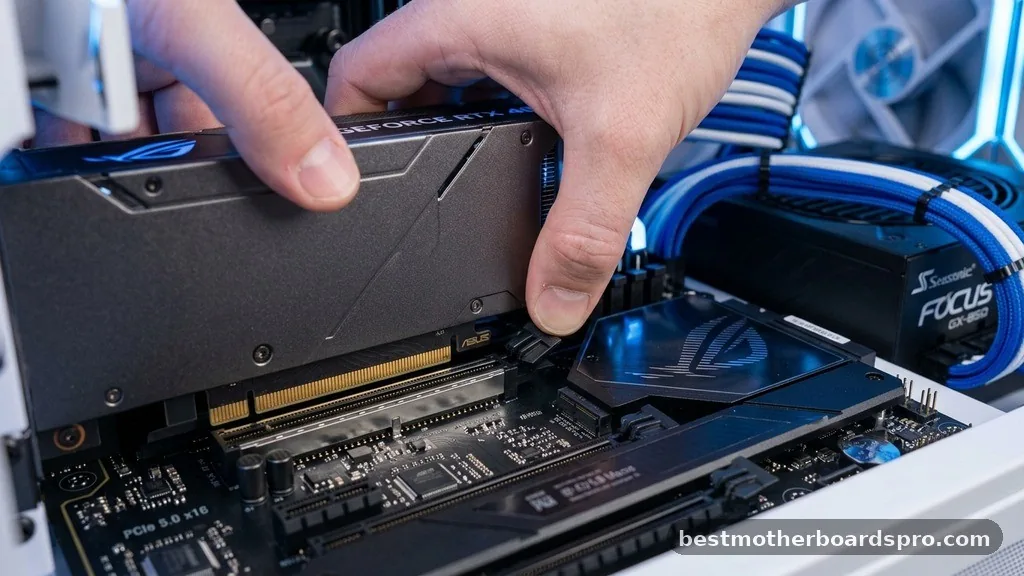
First, ensure that your graphics card is firmly pushed into the top PCIe slot. Even a slight misalignment can cause the pins to lose contact, preventing the motherboard from detecting the device. If you have a heavy card, it might be sagging, which can pull the connectors away from the slot. Ensure the locking tab on the PCIe slot is fully clicked into place.
Next, verify that all power cables are securely attached to the GPU. Most gaming cards require an 8-pin or 6-pin connector from the PSU.
If these are not fully seated, the card will not receive the power it needs to initiate. If your power supply is modular, check the connection at the PSU end as well.
Monitor and Cable Verification
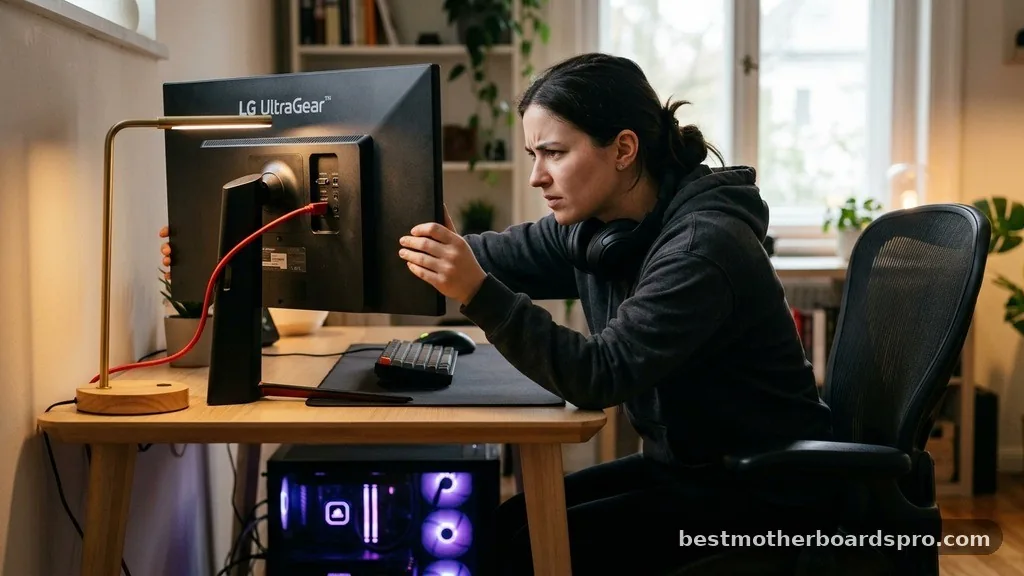
It is surprisingly common for the PC to be working perfectly while the monitor signal is the actual issue. If your monitor is set to the wrong input source, it will remain black, leading you to believe the PC is failing the POST sequence.
| Connection Type | Common Issue | Fix |
|---|---|---|
| HDMI Cable | Cable is damaged or low bandwidth | Swap for a high-speed certified cable |
| DisplayPort | Monitor sleep mode conflict | Power cycle the monitor and PC |
| Integrated Graphics | BIOS set to prioritize iGPU | Clear CMOS to reset default settings |
Resetting the BIOS and CMOS
Sometimes, the motherboard holds onto configuration settings that conflict with your current hardware. Clearing the CMOS forces the motherboard to revert to factory defaults, which often resolves initialization errors. You can usually do this by removing the small circular battery on the motherboard for about 30 seconds while the power is unplugged. Once you replace the battery and restart, the system will perform a fresh hardware scan.
Addressing Topical Gaps in GPU Initialization
A frequent point of confusion is whether RAM modules or other components can cause the light to stay on. While the light is specifically tied to the VGA stage, a bad stick of RAM can occasionally cause the system to halt before it even reaches the VGA test. If you have cleared the GPU issues and the light persists, try reseating your RAM.
Another gap is the “VGA light on but GPU works” scenario. Some motherboards have a bug in their BIOS that causes the light to stay on even after the OS has booted.
If you are getting a picture and everything runs normally, check the manufacturer’s website for a BIOS update. These updates frequently address stability issues and erroneous diagnostic reporting, ensuring the debug LEDs function accurately.
Advanced Diagnostics
If the basic steps fail, you may need to isolate the component. If you have access to a spare graphics card, try installing it to see if the motherboard recognizes it.
If the spare card works, your primary GPU might be failing. Conversely, if the spare card also triggers the light, the motherboard’s PCIe slot could be the source of the trouble.
Ensure your power supply unit has enough wattage to support your specific card. A high-end GPU might pull more power than a budget PSU can provide during the initial boot spike. If the PSU is struggling, it may fail to provide the necessary voltage to the PCIe lanes, causing the motherboard to flag a VGA error.
Frequently Asked Questions
Can a faulty HDMI cable cause the VGA light to turn on?
While an HDMI cable is passive, a damaged cable or a poor connection can prevent the monitor from receiving a signal. However, the VGA light specifically indicates the motherboard cannot communicate with the GPU. If the GPU is detected, the light should turn off regardless of the cable quality.
Why is my VGA light always on even though my PC works?
This is often a firmware bug in the motherboard’s BIOS. If your system boots into Windows and performs normally, the light is likely a false positive. Checking for a BIOS update from the motherboard manufacturer’s support page is the standard way to resolve these incorrect diagnostic LED states.
Does the VGA light mean my graphics card is dead?
Not necessarily. It means the motherboard failed to initialize the GPU during the boot process. This could be due to a loose connection, a lack of auxiliary power, or incorrect BIOS settings. Always test your physical connections and perform a CMOS reset before concluding that your hardware has failed.
Will a BIOS update fix a persistent VGA error?
Yes, a BIOS update can resolve compatibility issues between your motherboard and newer graphics cards. Manufacturers frequently release updates that improve PCIe stability and fix bugs where debug LEDs remain lit incorrectly. Always follow the manufacturer’s instructions carefully when flashing your BIOS to avoid damaging your system.
Final Thoughts on Resolving VGA Errors
Diagnosing a hardware startup issue requires a methodical approach, starting with the simplest physical connections and moving toward software configurations. By understanding what does vga light mean on motherboard, you can distinguish between a minor seating issue and a more significant component failure. Most of the time, the solution involves nothing more than reseating a cable or clearing the CMOS to reset the system’s hardware detection.
If you find yourself stuck, keep a record of what you have tried. This helps you narrow down the variables effectively.
Should you need further assistance, consult your motherboard manual for specific Q-LED behavior, as some manufacturers use different color codes or blink patterns to indicate distinct types of display adapter errors. With patience and systematic testing, you will likely have your system running perfectly again in no time.