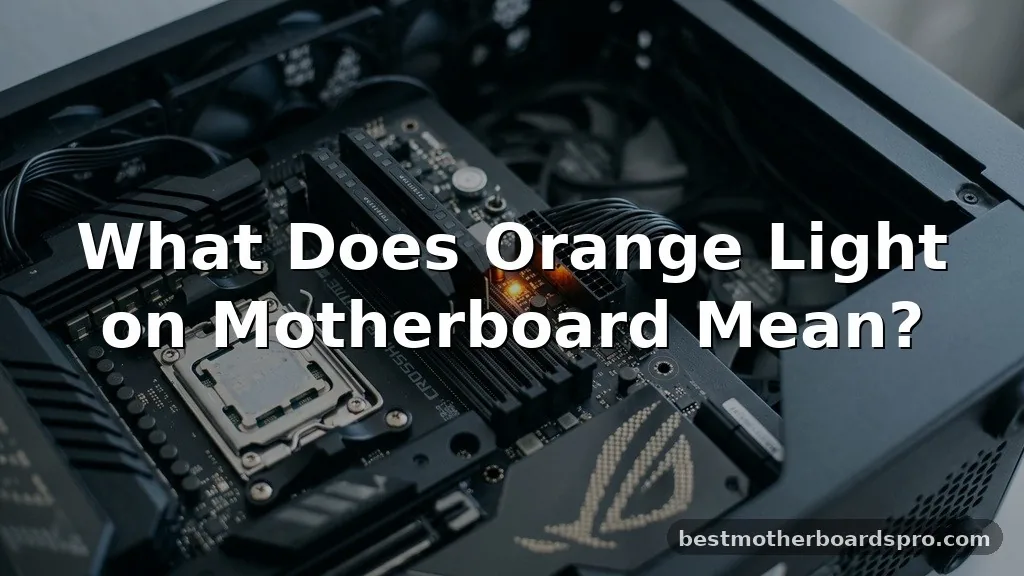
Seeing an unexpected glow inside your PC case can be jarring, especially when you’re trying to figure out what does orange light on motherboard mean during a startup attempt. This light usually acts as a silent messenger from your system’s firmware, signaling that the boot process has hit a snag during the initial hardware check.
Whether you are building a new rig or troubleshooting a machine that has worked for years, understanding these indicators helps you bypass the panic and get straight to the fix. We will walk through the common triggers for these diagnostic signals and provide actionable steps to restore your system to full functionality.
Understanding Motherboard Diagnostic LEDs
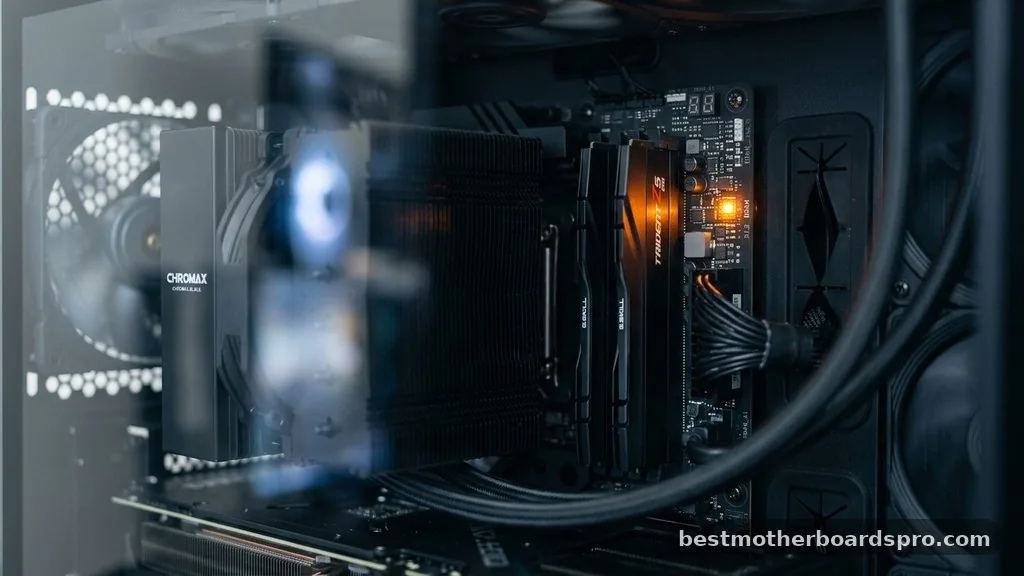
Modern motherboards are equipped with a series of tiny lights designed to communicate the status of your hardware during the Power-On Self-Test, or POST. These are often referred to as Q-LEDs or debug LEDs, and they serve as the primary diagnostic tool for identifying where the boot sequence is failing.
When you see a static or blinking orange light, it is almost always pointing toward a specific subsystem that failed its initialization. Most manufacturers use a color-coded system, and while orange is standard for memory-related issues on many boards, it can occasionally signify a power-related fault or a peripheral error. Always keep your motherboard manual nearby, as it contains the definitive legend for your specific model’s light patterns.
The Link Between Orange Lights and DRAM
In the vast majority of cases, an orange light on your motherboard indicates a problem with the DRAM status LED. This means the system is struggling to communicate with your memory modules. Because the computer cannot proceed past the memory initialization phase, it halts the boot process, often resulting in a black screen.
Common Reasons for RAM Initialization Failure
- Improper RAM seating in the DIMM slots.
- Corrupted or incompatible XMP/DOCP profiles in the BIOS.
- One or more faulty memory sticks.
- Dust or debris obstructing the gold contacts on the RAM.
- Incompatible memory speed or capacity for the specific motherboard.
If you have recently moved your PC or bumped the case, there is a high probability that a stick has simply shifted slightly. Opening the case and reseating the RAM—taking it out and snapping it firmly back into place—is the most effective first step.
Troubleshooting Power and Voltage Rails
While memory is the usual suspect, an orange light can sometimes point to a power supply unit issue. If the motherboard detects that a voltage rail is not providing the correct amount of power to the components, it may trigger a warning light to prevent hardware damage.
Comparing Potential Hardware Failure Indicators
| Light Color | Common Meaning | Primary Action |
|---|---|---|
| Orange/Yellow | DRAM/Memory Error | Reseat RAM or clear CMOS |
| Red | CPU/Thermal Error | Check cooler and CPU seating |
| White | VGA/GPU Error | Check display cable and GPU seating |
| Green | Boot Device Error | Check SSD/HDD connection |
If you suspect a power delivery issue, ensure all power cables—especially the 24-pin ATX and the 8-pin CPU power connector—are fully locked in. A loose cable can cause intermittent voltage drops that trigger diagnostic sensors.
Addressing BIOS and CMOS Issues
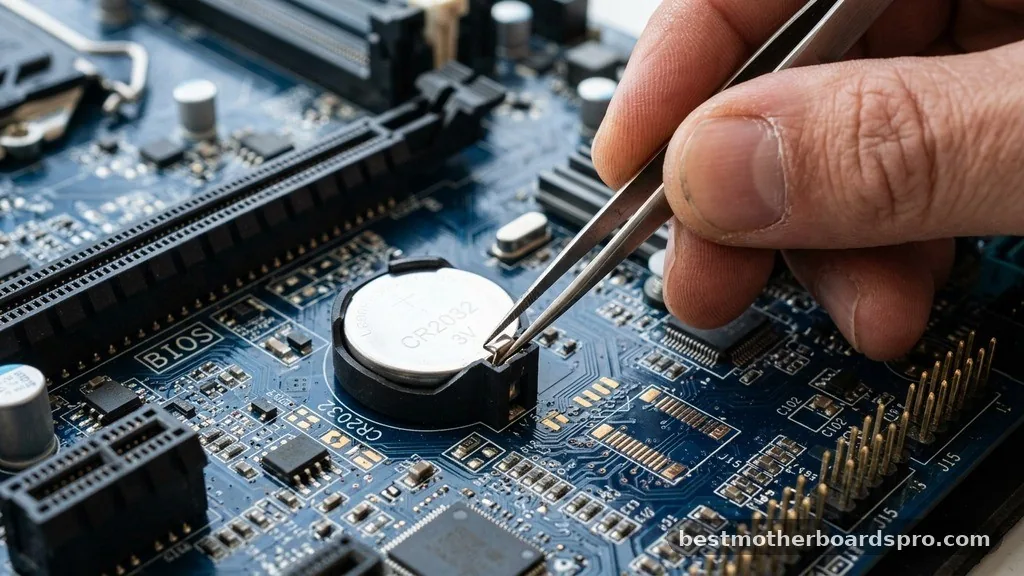
Sometimes, the hardware is perfectly fine, but the software configuration is causing the hiccup. If your BIOS settings have become corrupted or are incompatible with your current hardware configuration, a CMOS battery reset might be necessary.
To perform a reset, locate the coin-shaped battery on your motherboard. Remove it for about 30 seconds and then place it back in.
This clears the volatile memory in the BIOS, forcing the motherboard to revert to factory settings. If the orange light persists after this, you may need to perform a BIOS flash to update the firmware to a version that better supports your current hardware, such as newer CPU generations.
Peripheral Interference and Hardware Initialization
During the hardware initialization phase, the motherboard polls every connected device to ensure it can communicate. Occasionally, a faulty USB device, an external hard drive, or even a specialized peripheral can cause a conflict that halts the boot process.
Try disconnecting everything except the absolute essentials: the power cable, the monitor, and the keyboard. If the system boots successfully without your peripherals, you can plug them back in one by one to identify the culprit. This process of elimination is often the fastest way to solve a “ghost” error that doesn’t seem tied to a specific component.
Examining the CPU Socket and Thermal Factors
While less common, an orange light can sometimes be triggered by issues within the CPU socket. If pins in the socket are bent or damaged, the motherboard may fail to detect the memory channels controlled by the processor. Similarly, if your cooler is mounted too tightly, it can cause uneven pressure on the pins, leading to communication errors.
Check for signs of thermal throttling or overheating if the system manages to boot but shuts down shortly after. If the orange light stays on permanently, carefully inspect the CPU socket for any physical deformation. Avoid touching the pins directly, as static discharge can easily damage the delicate circuitry.
FAQ
How do I know if my RAM is actually broken?
To test if your memory is failing, try booting your system with only one stick of RAM installed at a time. Rotate through each slot to rule out a dead motherboard channel. If the system works with one stick but not others, the specific module is likely defective.
Can a dying power supply cause an orange motherboard light?
Yes, if the power supply unit is failing to deliver consistent voltage to the motherboard, the diagnostic sensors may trigger a warning light. If you have tried reseating all components and the issue remains, testing with a known-working power supply is a logical next troubleshooting step.
Is it safe to keep using my PC with an orange light?
Generally, no. An orange light usually signifies a failure in the POST sequence, meaning the system cannot initialize correctly. Even if the computer manages to boot, running it in a state where hardware components are not properly detected can lead to data corruption or secondary hardware damage.
What if the light is blinking instead of solid?
A blinking light often indicates an active error code that changes based on the boot stage, or it could be a specific pattern defined by your manufacturer. Check your manual to see if a blinking pattern corresponds to a specific error code, such as a memory frequency mismatch.
Resolving Your System Issues
When you encounter an orange light on your motherboard, it is rarely a sign of total system failure. Most often, the issue is a simple communication breakdown between your RAM and the motherboard that can be resolved by reseating your modules or clearing the CMOS. By methodically checking your connections and isolating individual components, you can usually identify the root cause without needing to replace expensive hardware.
If you have tried all the steps mentioned and the light remains, consult your specific motherboard manual for manufacturer-specific error codes. Sometimes, a simple firmware update is all it takes to align your hardware with your system’s needs.
Take your time, handle your components with care, and you will likely have your machine back up and running in no time. If you continue to face trouble, reaching out to the manufacturer’s support forums can often provide insights tailored to your exact hardware setup.